
Running kubectl apply by hand works fine, until it doesn’t. You make a quick fix at 11pm and forget to commit the manifest. A ConfigMap gets edited during debugging and never makes it back into your YAML. Six months later, the cluster running in front of you no longer matches the files sitting on your laptop.
GitOps changes where the cluster gets its instructions. Instead of applying manifests manually, you commit the desired state to a Git repository. A controller inside the cluster watches that repository, compares it with what’s actually running, and continuously reconciles the two. Git becomes the source of truth, and changes to the cluster start with a commit rather than a kubectl apply.
We’ll install FluxCD, connect it to the self-hosted Gitea repository, and set up a practical GitOps workflow for the Turing Pi 2.5. Then we’ll add a real workload to the repo, push it to Gitea, and watch it appear in the cluster without manually applying the manifest. We’ll change the workload and follow the same reconciliation loop a second time, then cover the Flux commands you’ll actually use day to day and where ArgoCD fits as an alternative.
In the previous Gitea on Turing Pi 2.5 guide, we created a homelab-gitops repository and configured SSH access on port 2222. Now we’ll put that repository at the center of the k3s cluster.
By the end, homelab-gitops will contain the desired Kubernetes state, FluxCD will keep the k3s cluster aligned with it, and we’ll have verified the entire path from git push to running pod on ARM64.
Part 1: What GitOps Actually Means in Practice
The important shift with GitOps is not that your YAML lives in Git. Plenty of people already keep manifests in a repository and still run kubectl apply manually. The difference is that the cluster is now responsible for pulling its desired state and enforcing it.
Say you commit a Deployment with two replicas. Flux sees the new revision, applies it, and records the reconciliation. If someone later scales that Deployment to five replicas with kubectl, the live cluster has drifted from Git. Flux detects the difference and brings it back to two. To make five replicas stick, you change the manifest in the repo and commit it.
That changes how you recover from mistakes too. A bad deployment has a commit behind it, so the path back is a git revert followed by reconciliation. When you need to know why something changed, the repository gives you the diff, commit message, and history instead of relying on whatever commands you remember running three weeks ago.
For a Turing Pi homelab, the bigger payoff is repeatability. k3s still handles scheduling workloads when an RK1 node goes offline, and Flux does not reinstall or rebuild the node itself. What Flux keeps consistent is the Git-managed Kubernetes state. Rebuild the cluster, bootstrap Flux against the same repository, and those Deployments, Services, and other managed resources can be reconciled back from Git instead of reapplied one manifest at a time.
Part 2: FluxCD vs ArgoCD
FluxCD and ArgoCD are both CNCF-graduated GitOps projects. Either can keep a Kubernetes cluster aligned with state declared in Git, but the way they package that workflow is noticeably different.
| FluxCD | ArgoCD | |
| Architecture | Modular Kubernetes controllers for sources, Kustomize, Helm, and notifications | Application controller, repository server, API server, and Redis-backed caching |
| ARM64 support | Official multi-architecture images for the Flux controllers | Official ARM64 container images |
| Footprint | No built-in web UI or separate repository server | More components, including the API server, repository server, and Redis |
| Workflow | Git and Kubernetes resources first, managed through YAML and CLI tooling | Application-centric workflow with CLI, API, and a built-in web UI |
| Reconciliation | Controllers continuously reconcile declared sources and resources | Application controller compares live state with the desired target state |
| Best fit | CLI-first GitOps, edge systems, and resource-conscious clusters | Teams that want a visual application view or centralized multi-cluster management |
For this Turing Pi 2.5 cluster, FluxCD is the better fit. The RK1 nodes are already running k3s and the services deployed throughout this series, so adding a GitOps layer does not need to mean adding a dashboard and its supporting components too. Flux gives us the reconciliation loop we want while keeping the workflow centered on Git, YAML, and the command line.
That also fits the tooling we’ve already built around the cluster. Ansible handles repeatable node and cluster configuration, Gitea stores the repositories, and Flux will keep the Kubernetes resources declared in Git aligned with the cluster. Each tool has a clear job.
ArgoCD becomes more attractive when the visual layer is part of the requirement. Its web UI makes it easier to inspect application health, compare live and desired state, and see deployments across clusters from one place. If this homelab grows into several clusters or you want a dashboard-first GitOps workflow, ArgoCD is worth revisiting.
For this guide, though, Flux keeps the focus exactly where we want it: commit a change, let the controllers reconcile it, and verify what changed.
Part 3: Install the Flux CLI
We’ll run the Flux CLI from the laptop or workstation used to manage the cluster. The Flux controllers will run inside k3s after bootstrap, so there is no need to install the CLI on every RK1 node.
On Linux or macOS, install Flux with the official script:
curl -s https://fluxcd.io/install.sh | sudo bash
The installer detects the local platform and supports ARM64 and x86_64 systems. Homebrew users can install Flux with brew install fluxcd/tap/flux. On Windows, use choco install flux or run the Bash installer from WSL.
Confirm the CLI is available:
flux --version
Give Flux Access to the k3s Cluster
The k3s setup guide used sudo k3s kubectl directly on the control-plane node. Flux is running from a different machine, so it needs a copy of the cluster’s kubeconfig before it can reach the Kubernetes API.
On the k3s-server control-plane node, print the kubeconfig:
sudo cat /etc/rancher/k3s/k3s.yaml
On your laptop or workstation, create the local kubeconfig file:
mkdir -p ~/.kube
nano ~/.kube/config
Paste the complete kubeconfig from the control-plane node and save the file. Then find the server entry:
server: https://127.0.0.1:6443
Replace 127.0.0.1 with the reachable IP address or hostname of your k3s-server node:
server: https://<k3s-server-ip>:6443
Protect the kubeconfig:
chmod 600 ~/.kube/config
Flux can now use this Kubernetes context directly. Run its pre-installation check:
flux check --pre
A successful check confirms that Flux can reach the Kubernetes API and that the cluster meets the current version requirements. If Flux reports that a newer CLI version is required, rerun the installation command to upgrade and repeat the check before continuing.
The kubeconfig grants administrative access to the cluster, so treat ~/.kube/config as a credential and do not commit it to Gitea.
Part 4: Bootstrap FluxCD on k3s
Flux provides a dedicated flux bootstrap gitea command, but that workflow uses the Gitea API and requires a personal access token. We already have the homelab-gitops repository from the previous guide and want to authenticate over SSH, so we’ll use the generic flux bootstrap git workflow for an existing repository.
First, create a dedicated SSH key for Flux on the laptop or workstation where you installed the CLI:
ssh-keygen -t ed25519 -f ~/.ssh/id_ed25519_flux -C "flux-gitops"
When prompted for a passphrase, you can leave it empty for this dedicated Flux SSH key. The command creates the private key at ~/.ssh/id_ed25519_flux and the public key at ~/.ssh/id_ed25519_flux.pub.
If a key already exists at that path, ssh-keygen will ask whether you want to overwrite it. Do not replace an existing key unless you intentionally want to rotate it. Use a different filename instead if the existing key is still in use.
Print the public key:
cat ~/.ssh/id_ed25519_flux.pub
In Gitea, open homelab-gitops and go to Settings → Deploy Keys → Add Deploy Key. Paste the complete public key, give it a recognizable name such as flux-turing-pi, and enable write access.
Write access is required during bootstrap because Flux commits its generated manifests back to homelab-gitops. A dedicated deploy key also keeps the credential stored in the cluster separate from the personal SSH key configured in the previous Gitea guide.
Now bootstrap Flux:
flux bootstrap git \
  --url=ssh://git@<gitea-host>:2222/<gitea-user>/homelab-gitops.git \
  --branch=<branch> \
  --path=clusters/turing-pi \
  --private-key-file="$HOME/.ssh/id_ed25519_flux"
Replace <gitea-host> with the IP address or hostname of your Gitea server, <gitea-user> with the owner of homelab-gitops, and <branch> with the repository’s current branch. If you followed the previous guide, check the branch shown in Gitea rather than assuming it is main or master.
Use a Gitea address that the k3s nodes can reach directly. In this setup, Gitea runs separately in Docker while Flux manages the k3s cluster. Keeping the Git source available outside the cluster also avoids a circular dependency during a full cluster rebuild: Flux needs to reach homelab-gitops before it can reconcile workloads from that repository.
The repository URL becomes part of Flux’s Git source configuration, so source-controller must continue reaching that address after the bootstrap command on your laptop finishes.
During bootstrap, Flux prints the SSH public key and asks you to confirm that the key has access to the repository:
Please give the key access to your repository: y
Since we already added the key as a write-enabled Gitea deploy key, enter y to continue.
Bootstrap handles both sides of the setup. It installs the Flux controllers into the flux-system namespace, commits the generated manifests to homelab-gitops, pushes them to Gitea, and configures the cluster to synchronize from the repository. It then waits for the Git source and root Kustomization to reconcile before confirming that the controllers are healthy.
After bootstrap, clone the repository if you do not already have a local copy:
git clone ssh://git@<gitea-host>:2222/<gitea-user>/homelab-gitops.git
cd homelab-gitops
If you cloned the empty repository before running bootstrap, pull the commit Flux just created instead:
cd homelab-gitops
git pull origin <branch>
The repository now contains:
homelab-gitops/
└── clusters/
    └── turing-pi/
        └── flux-system/
            ├── gotk-components.yaml
            ├── gotk-sync.yaml
            └── kustomization.yaml
gotk-components.yaml contains the Flux controller manifests. gotk-sync.yaml defines the GitRepository and root Kustomization that point the cluster back at homelab-gitops. The generated kustomization.yaml includes those manifests, allowing Flux to manage its own installation through Git.
Flux also stores the SSH private key and host information used by the Git source in a Kubernetes Secret named flux-system in the flux-system namespace.
Once bootstrap completes, verify the installation:
flux check
All installed Flux components should report as ready before continuing. At this point, the controllers inside k3s can fetch and reconcile Git-managed cluster state without the Flux CLI maintaining an active connection.
The generic Git bootstrap workflow requires pull and push access because flux bootstrap git commits and pushes the generated Flux manifests to the repository. The reconciliation workflow in this guide only reads from Git after bootstrap.
If you want to reduce the deploy key to read-only access after bootstrap, remove the write-enabled deploy key from Gitea and add the same public key again without enabling write access. Keep write access if you later configure Flux features that write changes back to Git, or temporarily restore it before running a bootstrap workflow that needs to push updated manifests.
Treat the
flux-systemSecret as a credential. The private repository key is stored in the cluster, so anyone with permission to read that Secret can recover it. Using a repository-scoped deploy key limits the impact tohomelab-gitopsand lets you rotate Flux’s access without changing your normal Gitea SSH key.
Part 5: Structure the Repository for GitOps
Bootstrap already created the cluster configuration under clusters/turing-pi/flux-system/. Now we’ll add an apps/ directory for the workloads we want to manage through Flux.
Make sure you’re in the local homelab-gitops repository and pull the Flux bootstrap commit before creating any new files:
cd ~/homelab-gitops
git pull origin <branch>
Bootstrap committed the initial Flux configuration directly to Gitea. If you cloned the repository before running bootstrap, your local copy will not contain clusters/turing-pi/ until you pull those changes.
Create the apps directory and its Kustomize configuration:
mkdir -p apps
nano apps/kustomization.yaml
Add:
apiVersion: kustomize.config.k8s.io/v1beta1
kind: Kustomization
resources: []
Save the file and exit the editor. The empty resources list is intentional. We have not added a workload yet, but committing this file ensures the apps/ path actually exists in Git. Git does not track empty directories, so creating apps/ with mkdir alone is not enough.
The repository now uses this simple layout:
homelab-gitops/
├── apps/
│   └── kustomization.yaml
└── clusters/
    └── turing-pi/
        ├── apps.yaml
        ├── flux-system/
        └── kustomization.yaml
clusters/turing-pi/ describes what this k3s cluster should reconcile. The apps/ directory contains the Kubernetes manifests for the workloads themselves.
Now create the Flux Kustomization for the apps directory:
nano clusters/turing-pi/apps.yaml
Add:
apiVersion: kustomize.toolkit.fluxcd.io/v1
kind: Kustomization
metadata:
  name: apps
  namespace: flux-system
spec:
  interval: 5m
  path: ./apps
  prune: true
  sourceRef:
    kind: GitRepository
    name: flux-system
Save the file and exit the editor.
This is a Flux Kustomization, not the kustomization.yaml file used by Kustomize. It tells kustomize-controller to build the configuration under ./apps from the Git source created during bootstrap and reconcile it into the cluster.
With prune: true, resources managed by this Kustomization are removed when their manifests are removed from the Kustomize configuration and pushed to Git. That keeps the cluster aligned with the repository, but it also means removing a workload from Git can remove the corresponding resources from the cluster.
We still need to connect apps.yaml to the root configuration Flux is already reconciling. Open the bootstrap-generated Kustomize file:
nano clusters/turing-pi/kustomization.yaml
Add apps.yaml to the resource list so the file contains:
apiVersion: kustomize.config.k8s.io/v1beta1
kind: Kustomization
resources:
  - ./flux-system
  - ./apps.yaml
Save and exit. This connects the apps Kustomization to the root configuration Flux already watches. Without this step, apps.yaml could sit in the repository without ever being applied to the cluster.
Commit and push the changes:
git add .
git commit -m "Add apps GitOps reconciliation"
git push origin <branch>
Flux now has a valid ./apps path to reconcile, even though it does not contain a workload yet. In the next section, we’ll add podinfo to apps/ and explicitly include it in apps/kustomization.yaml.
We’re intentionally keeping the repository simple. A base/ and overlays/ layout becomes useful when the same workloads need different configurations across development, staging, and production. For one Turing Pi 2.5 cluster, clusters/turing-pi/ and apps/ give us enough separation without adding directory structure we do not need yet.
Part 6: Deploy a Real Workload Through GitOps
Time for the payoff. We’ll deploy podinfo, a small Kubernetes demo application also used throughout Flux’s own documentation.
From the homelab-gitops repository, create a directory for the workload:
mkdir -p apps/podinfo
nano apps/podinfo/podinfo.yaml
Add the Deployment and Service:
apiVersion: apps/v1
kind: Deployment
metadata:
  name: podinfo
  namespace: default
spec:
  replicas: 1
  selector:
    matchLabels:
      app: podinfo
  template:
    metadata:
      labels:
        app: podinfo
    spec:
      containers:
        - name: podinfo
          image: ghcr.io/stefanprodan/podinfo:6.13.0
          ports:
            - containerPort: 9898
          resources:
            requests:
              cpu: 50m
              memory: 32Mi
---
apiVersion: v1
kind: Service
metadata:
  name: podinfo
  namespace: default
spec:
  selector:
    app: podinfo
  ports:
    - port: 80
      targetPort: 9898
Podinfo is published through GHCR and provides multi-architecture images, so the container can run natively on the RK1’s ARM64 cores.
Save the file and exit the editor. Now open the Kustomize configuration for the apps/ directory:
nano apps/kustomization.yaml
Add the podinfo manifest to the resource list:
apiVersion: kustomize.config.k8s.io/v1beta1
kind: Kustomization
resources:
  - ./podinfo/podinfo.yaml
Save the file, then commit and push both changes to Gitea:
git add apps/
git commit -m "Add podinfo workload"
git push origin <branch>
Now watch the apps Kustomization:
flux get kustomizations --watch
Flux’s source-controller detects the new Git revision. The apps Kustomization then builds the resources declared in apps/kustomization.yaml and reconciles them into the cluster.
Once apps reports Ready=True, connect to the control-plane node and confirm the pod is running:
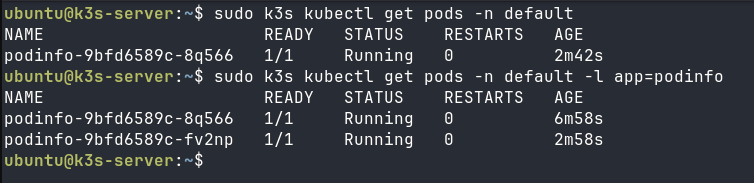
sudo k3s kubectl get pods -n default
You should see the podinfo pod in the Running state.
No kubectl apply created it. We added the workload to homelab-gitops, declared it in the apps Kustomization, and pushed the change to Gitea. Flux reconciled that Git state into a Deployment and Service, completing the path from git push to a running ARM64 pod.
Part 7: Make a Change and Watch It Reconcile
The first workload is running. Now we’ll change its desired state in Git and watch Flux bring the cluster in line again.
Open the podinfo manifest:
nano apps/podinfo/podinfo.yaml
Change the replica count from 1 to 2:
spec:
  replicas: 2
Save the file, then commit and push the change:
git add apps/podinfo/podinfo.yaml
git commit -m "Scale podinfo to 2 replicas"
git push origin <branch>
Watch the apps Kustomization:
flux get kustomizations --watch
The revision hash updates when Flux detects the new commit and reconciles it. Once apps reports Ready=True for the new revision, connect to the control-plane node and check the podinfo pods:
sudo k3s kubectl get pods -n default -l app=podinfo
You should now see two running pods, matching the two replicas declared in homelab-gitops. We changed the desired state in Git without scaling the Deployment directly in Kubernetes.
For a closer look at the reconciliation, run this from the machine with the Flux CLI:
flux logs --kind=Kustomization --name=apps --namespace=flux-system --since=10m
The filtered controller logs show when the apps Kustomization reconciled and completed its server-side apply. Flux supports filtering logs by resource kind and name, which is useful when several controllers are reconciling at the same time.
At this point, the loop is repeatable: change the desired state, commit it, and push it to Gitea. Flux detects the new Git revision and reconciles the k3s cluster until the live resources match what the repository declares.
Part 8: Force Reconciliation and Pause GitOps Temporarily
Flux reconciles automatically, but a few commands are useful when testing changes or debugging the cluster.
To fetch the latest Git source and reconcile the apps Kustomization immediately, run:
flux reconcile kustomization apps --with-source
This skips waiting for the configured reconciliation interval and waits for the reconciliation to finish.
You can also temporarily suspend the apps Kustomization:
flux suspend kustomization apps
While suspended, Flux stops applying new source revisions and pauses drift correction for resources managed by this Kustomization. That gives you room to inspect or edit a live resource without Flux immediately restoring the state declared in Git.
Resume reconciliation with:
flux resume kustomization apps
Flux marks the Kustomization for reconciliation and waits for the apply to complete. Any Git changes that arrived while apps was suspended can now be reconciled into the cluster.
Confirm that the Kustomization is healthy again:
flux get kustomizations
The apps Kustomization should report SUSPENDED=False and READY=True.
Suspension is useful for temporary debugging, but it should remain temporary. Once reconciliation resumes, Git is again the desired state Flux works to enforce.
Part 9: What Happens When a Node Goes Down
GitOps does not replace k3s node recovery. If an RK1 agent goes offline, Kubernetes handles workload scheduling and may recreate eligible pods on healthy nodes. Flux has a different job: it continues reconciling the Kubernetes resources managed through homelab-gitops against the state declared in Git.
That distinction matters. Flux does not reinstall Ubuntu, rejoin an RK1 to the cluster, or restore data from a failed NVMe drive. What it removes is the need to remember which Deployments, Services, and other Git-managed resources were applied manually. Once a repaired or replacement node rejoins k3s, it becomes available to the Kubernetes scheduler again while Flux continues enforcing the desired cluster state.
The larger recovery benefit appears when rebuilding the cluster itself. Bootstrap Flux against the same homelab-gitops repository, and the controllers can reconcile the Kubernetes resources declared there back into the new cluster. Flux bootstrap configures a cluster to synchronize its state from Git, while Kustomizations continuously calculate and apply desired state from their configured sources.
That still is not a complete disaster recovery strategy. Persistent application data, databases, secrets, and anything outside Git need their own backup and restore plan. But for the Kubernetes configuration managed by Flux, the repository becomes a reproducible record of what should exist instead of a list of commands you hope someone wrote down.
Troubleshooting
flux bootstrap git cannot access the repository. Confirm the SSH URL, port, and repository path first. For the Gitea setup used in this guide, SSH runs on port 2222. Also confirm that the Flux public key was added to homelab-gitops as a deploy key with write access.
Flux reports kustomization path not found for ./apps. Git does not track empty directories. Make sure apps/kustomization.yaml exists, has been committed, and has been pushed to Gitea. Check the current state with:
flux get kustomizations
The apps Kustomization is not ready. A failed reconciliation can come from a Kustomize build error, invalid Kubernetes manifest, apply failure, or another configuration problem. Check the Kustomization status and error-level controller logs:
flux get kustomizations
flux logs --level=error
Changes are in Gitea but the cluster has not updated yet. The source or Kustomization may still be waiting for its next reconciliation interval. Fetch the latest source and reconcile apps immediately:
flux reconcile kustomization apps --with-source
A workload manifest exists under apps/ but never deploys. Check apps/kustomization.yaml. In the repository structure used in this guide, each workload must be included in its resources list before Kustomize builds it.
Flux keeps overwriting a manual Kubernetes change. That is expected drift correction. Git declares the desired state, so Flux can restore resources changed directly in the cluster. Suspend the apps Kustomization before temporary manual debugging, then resume reconciliation when finished:
flux suspend kustomization apps
flux resume kustomization apps
flux check --pre tries to connect to localhost:8080. Flux cannot find a usable Kubernetes context. Confirm that ~/.kube/config exists on the machine running the Flux CLI and that its server entry points to the reachable IP address or hostname of the k3s control-plane node rather than 127.0.0.1.
What You’ve Built
At this point, FluxCD is running inside the k3s cluster and continuously synchronizing with the self-hosted homelab-gitops repository in Gitea. The repository now contains both the Flux bootstrap configuration and an explicit Kustomize structure for the workloads managed through Git.
We verified the full reconciliation loop with podinfo. The first Git commit created a Deployment and Service in k3s without kubectl apply. Changing the replica count from one to two in the repository caused Flux to detect a new revision and reconcile the Deployment until two pods were running on the RK1 cluster.
The setup now gives you:
- A self-hosted GitOps workflow from Gitea to FluxCD to k3s
- A dedicated SSH deploy key scoped to the
homelab-gitopsrepository - An
apps/structure for explicitly declaring Git-managed workloads - Automatic reconciliation when the desired Kubernetes state changes in Git
- Drift correction, manual reconciliation, and suspend/resume controls for day-to-day operation
- A reproducible record of Git-managed Kubernetes resources that can be reconciled into a bootstrapped cluster
Flux is not a backup system and it does not rebuild failed RK1 nodes. Persistent data, secrets, and node recovery still need their own plan. What we’ve removed is the need to remember which Kubernetes manifests were applied manually or in what order. For the resources managed here, the repository now describes what the cluster should be running, and Flux keeps working to make the live state match it.
Related Articles
- Gitea on Turing Pi 2.5: build the self-hosted Git server and
homelab-gitopsrepository used throughout this guide. - K3s on Turing Pi 2.5: Persistent Storage and Load Balancing on ARM: add Longhorn and MetalLB to the k3s cluster used in this guide.
- Best Kubernetes Storage for ARM Homelab: compare Longhorn, Ceph, OpenEBS, and NFS before deploying stateful workloads.
- K3s CNI Comparison: Flannel vs Cilium vs Calico: understand the networking layer connecting pods, services, and nodes across the cluster.
- K3s vs K0s vs MicroK8s vs RKE2: compare lightweight Kubernetes distributions for an ARM homelab.
FAQ
What is GitOps and why should I use it for a homelab?
GitOps means Git declares what should be running in your cluster, while a controller continuously reconciles the live state against that repository. For a homelab, this gives you a versioned change history, simple Git-based rollbacks, and a reproducible record of your Kubernetes configuration.
What is the difference between FluxCD and ArgoCD?
FluxCD uses a set of modular, CLI-first controllers and does not include a built-in web UI. ArgoCD provides a more centralized experience with a visual dashboard for inspecting and managing applications. Both are CNCF graduated GitOps projects; Flux fits the lightweight workflow used in this guide, while ArgoCD is stronger when a visual management interface is a priority.
Does FluxCD work on ARM64?
Yes. The Flux CLI supports ARM64, and the core Flux controllers publish multi-architecture container images. They run natively on ARM64 hardware such as the RK1 modules used in this Turing Pi cluster.
Does FluxCD work with k3s?
Yes. Flux works with Kubernetes clusters, including k3s, without requiring a k3s-specific installation path. In this guide, the standard Flux bootstrap and reconciliation workflow runs directly against our ARM64 k3s cluster.
How does FluxCD connect to a self-hosted Gitea instance?
For the setup in this guide, Flux connects to Gitea over SSH using flux bootstrap git and a repository-scoped deploy key. If Gitea exposes SSH on a non-standard port, such as 2222 in our setup, include the port directly in the repository URL passed to --url.
What happens to my cluster if Gitea goes down?
Existing workloads do not suddenly stop when Gitea becomes unavailable. Flux cannot fetch new repository revisions until the Git source is reachable again, so new Git changes will not be reconciled during the outage. Once Gitea returns, Flux can fetch the latest revision and continue reconciliation.
Can I use FluxCD with Helm charts?
Yes. Flux’s helm-controller manages Helm releases declaratively through HelmRelease resources. This extends the same GitOps model used in this guide to applications distributed as Helm charts.