
Running a demo workload on a bare-metal Kubernetes cluster is easy. Running something you actually depend on is a different problem entirely. The moment you need your data to survive a pod restart, or you want a service to be reachable at a stable IP on your local network, you hit two walls fast: ephemeral storage and the eternal <pending> LoadBalancer. If you have a k3s Turing Pi 2.5 ARM cluster from the first article in this series, this article closes both gaps and adds a third node to give Longhorn enough replicas to actually protect your data.
By the end of this guide you will have:
- A third RK1 node joined to the cluster, giving you a proper multi-worker topology
- MetalLB assigning real LAN IPs to LoadBalancer services
- Longhorn providing replicated persistent storage across nodes
- Uptime Kuma migrated from ephemeral
emptyDirto a PersistentVolumeClaim backed by Longhorn
From the first guide, you have a two-node k3s cluster on Ubuntu 22.04 ARM64 with static IPs, and Uptime Kuma deployed using an emptyDir volume. That means no data persistence, no external IP, and no scheduling headroom when Node 2 gets busy. This article picks up from that exact state.
Quick Overview: k3s Persistent Storage and Load Balancing on Turing Pi 2.5
- What this guide covers: adding a third RK1 node to your k3s cluster, installing MetalLB for stable LAN IPs, setting up Longhorn for replicated persistent storage, migrating Uptime Kuma from emptyDir to a PVC, and verifying the full stack with real commands.
- Why emptyDir is not enough: pod restarts wipe your data, node failures lose it entirely. Longhorn replicates volumes across nodes so your data survives both.
- MetalLB on bare metal: without it, every LoadBalancer service stays stuck in
<pending>indefinitely. MetalLB assigns real IPs from your LAN range so services are reachable from any device on your network. - Longhorn on ARM works out of the box: ships ARM64 images, runs on RK3588 without patches, and installs via Helm in under 5 minutes. Requires
open-iscsion each node. - Prerequisites: a working 2-node k3s cluster on Turing Pi 2.5 from Article 1 and Helm installed on the control plane node.
Part 1: Adding a New Node to the k3s Cluster
Adding Node 3 (or any additional node) follows the same pattern as joining Node 2. If this is a fresh node, follow the setup guide from earlier in this series before joining it to the cluster. Retrieve the node token from the control plane and run the agent installer on the new node.
On Node 1 (control plane):
sudo cat /var/lib/rancher/k3s/server/node-token
On the new worker node:
curl -sfL https://get.k3s.io | K3S_URL=https://<NODE1_IP>:6443 K3S_TOKEN=<YOUR_NODE_TOKEN> sh -
Replace <NODE1_IP> with the static IP of your control plane and <YOUR_NODE_TOKEN> with the value from the previous command. The installer pulls the correct ARM64 binary automatically.
Give it 60 seconds, then verify from Node 1:
kubectl get nodes
All nodes should show Ready. If a node stays NotReady for more than two minutes, check sudo journalctl -u k3s-agent -f on the new node for errors.
Part 2: Cluster Architecture
With three nodes active, it helps to be explicit about what each machine is doing.
| Node | Role | RAM | Typical Workloads |
| Node 1 | Control-plane (server) | 8 GB | k3s API server, etcd, scheduler |
| Node 2 | Worker (agent) | 16 GB | Application pods, Longhorn replica |
| Node 3 | Worker (agent) | 32 GB | Heavy workloads, Longhorn replica, inference |
Think of it as three tiers in a vertical stack. The control plane at the top handles only cluster state. The two workers below it share the actual workload. Traffic enters from your local network at the bottom, hits MetalLB which routes it to the right node, and Longhorn keeps volume data synchronized horizontally across worker nodes.
The control plane node deliberately stays lean. Running application workloads on it risks starving the API server under load, which can cascade into scheduling failures across the whole cluster. With 8 GB on node1, that memory is far more valuable keeping etcd healthy than running pods.
Part 3: Load Balancing with MetalLB on a Kubernetes ARM Homelab
The Problem
On any bare-metal cluster, creating a service of type LoadBalancer leaves it stuck in <pending> indefinitely:
NAME          TYPE           CLUSTER-IP     EXTERNAL-IP   PORT(S)          AGE
uptime-kuma   LoadBalancer   10.43.112.55   <pending>     3001:32145/TCP   5m
There is no cloud provider to allocate the IP. MetalLB fills that role locally by responding to ARP requests on your LAN and routing traffic to the correct node. This setup uses MetalLB in Layer 2 mode, which works by advertising IPs directly on your local network.
Install MetalLB via Helm
Before running any Helm commands, ensure your shell can access the k3s cluster:
sudo chmod 644 /etc/rancher/k3s/k3s.yaml
export KUBECONFIG=/etc/rancher/k3s/k3s.yaml
This only needs to be done once per session. To make it persistent:
echo 'export KUBECONFIG=/etc/rancher/k3s/k3s.yaml' >> ~/.bashrc
source ~/.bashrc
Run these commands from the control plane node:
helm repo add metallb https://metallb.github.io/metallb
helm repo update
helm install metallb metallb/metallb \
  --namespace metallb-system \
  --create-namespace \
  --wait
If installation times out, rerun without --wait and verify pods manually.
Wait for the pods to reach Running state before proceeding:
kubectl get pods -n metallb-system
Configure an IP Address Pool
Pick a range from your LAN subnet that sits outside your DHCP server’s allocation range. For a typical home network using 192.168.1.x, something like 192.168.1.200-192.168.1.220 works well and avoids conflicts.
# metallb-pool.yaml
apiVersion: metallb.io/v1beta1
kind: IPAddressPool
metadata:
  name: local-pool
  namespace: metallb-system
spec:
  addresses:
    - 192.168.1.200-192.168.1.220
kubectl apply -f metallb-pool.yaml
Enable L2 Advertisement
# metallb-l2.yaml
apiVersion: metallb.io/v1beta1
kind: L2Advertisement
metadata:
  name: local-advertisement
  namespace: metallb-system
spec:
  ipAddressPools:
    - local-pool
kubectl apply -f metallb-l2.yaml
Patch Uptime Kuma to Use a LoadBalancer
kubectl patch svc uptime-kuma \
  -p '{"spec": {"type": "LoadBalancer"}}'
Within a few seconds, the EXTERNAL-IP column should populate. You can verify it with:
kubectl get svc uptime-kuma
NAME          TYPE           CLUSTER-IP     EXTERNAL-IP     PORT(S)          AGE
uptime-kuma   LoadBalancer   10.43.112.55   192.168.1.200   3001:32145/TCP   6m
You can now reach Uptime Kuma at http://<EXTERNAL-IP>:3001 from any device on your LAN without port-forwarding or remembering node IPs. Check the assigned external IP using kubectl get svc uptime-kuma.
Part 4: Persistent Storage with Longhorn on ARM
The Problem
emptyDir volumes live and die with the pod. Restart Uptime Kuma and every monitor you configured is gone. Reschedule it to a different node and the data never moves with it. For anything you care about, this is not acceptable.
Longhorn solves this by creating distributed block storage volumes that replicate across multiple nodes. Even if one worker goes offline, your data remains accessible because another node holds a current replica.
Install Longhorn via Helm
Longhorn ships ARM64 images and works on RK3588 without patches or workarounds.
First, ensure open-iscsi is installed on every node:
# Run on each node
sudo apt-get install -y open-iscsi
sudo systemctl enable --now iscsid
Then install Longhorn from the control plane node:
helm repo add longhorn https://charts.longhorn.io
helm repo update
helm install longhorn longhorn/longhorn \
  --namespace longhorn-system \
  --create-namespace \
  --set defaultSettings.defaultReplicaCount=2 \
  --wait
If installation times out, rerun without --wait and verify pods manually.
Setting defaultReplicaCount=2 means every volume gets two copies by default, spread across two different nodes. With three nodes in your cluster this works cleanly. If you add a fourth node, you can bump this to 3 for stronger fault tolerance.
The installation takes 3-5 minutes on RK1 nodes. Watch progress with:
kubectl get pods -n longhorn-system -w
Set Longhorn as the Default Storage Class
k3s ships with a local-path provisioner set as the default. Patch it out so Longhorn takes over:
kubectl patch storageclass local-path \
  -p '{"metadata": {"annotations":{"storageclass.kubernetes.io/is-default-class":"false"}}}'

kubectl patch storageclass longhorn \
  -p '{"metadata": {"annotations":{"storageclass.kubernetes.io/is-default-class":"true"}}}'
Verify:
kubectl get storageclass
You should see longhorn (default) in the output, indicating Longhorn is now the cluster’s default storage class.
Part 5: Migrating Uptime Kuma to Persistent Storage
You do not need to rewrite the full Uptime Kuma deployment. The only change is replacing the emptyDir volume block with a PersistentVolumeClaim.
Before (in the deployment spec):
volumes:
  - name: data
    emptyDir: {}
After:
volumes:
  - name: data
    persistentVolumeClaim:
      claimName: uptime-kuma-pvc
Create the PVC first:
Edit your uptime-kuma.yaml to replace the emptyDir block with the PVC reference shown above, then apply:
# uptime-kuma-pvc.yaml
apiVersion: v1
kind: PersistentVolumeClaim
metadata:
  name: uptime-kuma-pvc
spec:
  accessModes:
    - ReadWriteOnce
  resources:
    requests:
      storage: 2Gi
kubectl apply -f uptime-kuma-pvc.yaml
This will use the default storage class, which should now be Longhorn.
Then patch the deployment to reference it and apply.
kubectl apply -f ~/uptime-kuma.yaml
Once the pod restarts, verify the PVC is bound:
kubectl get pvc
Bound means Longhorn has provisioned the volume and the pod has successfully claimed it. If it stays in Pending, check kubectl describe pvc uptime-kuma-pvc for provisioner errors.
Part 6: Verifying the Full Stack
This section verifies that the entire cluster is functioning correctly. Run each of these in order and compare against what a healthy cluster looks like.
Node Health
kubectl get nodes
What healthy looks like:
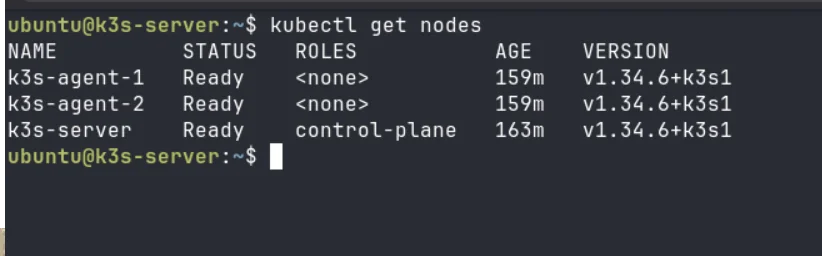
Every node must show Ready. A node showing NotReady or SchedulingDisabled is a problem. If any node is missing entirely, it never joined successfully.
Pod Health Across All Namespaces
kubectl get pods -A
What healthy looks like:
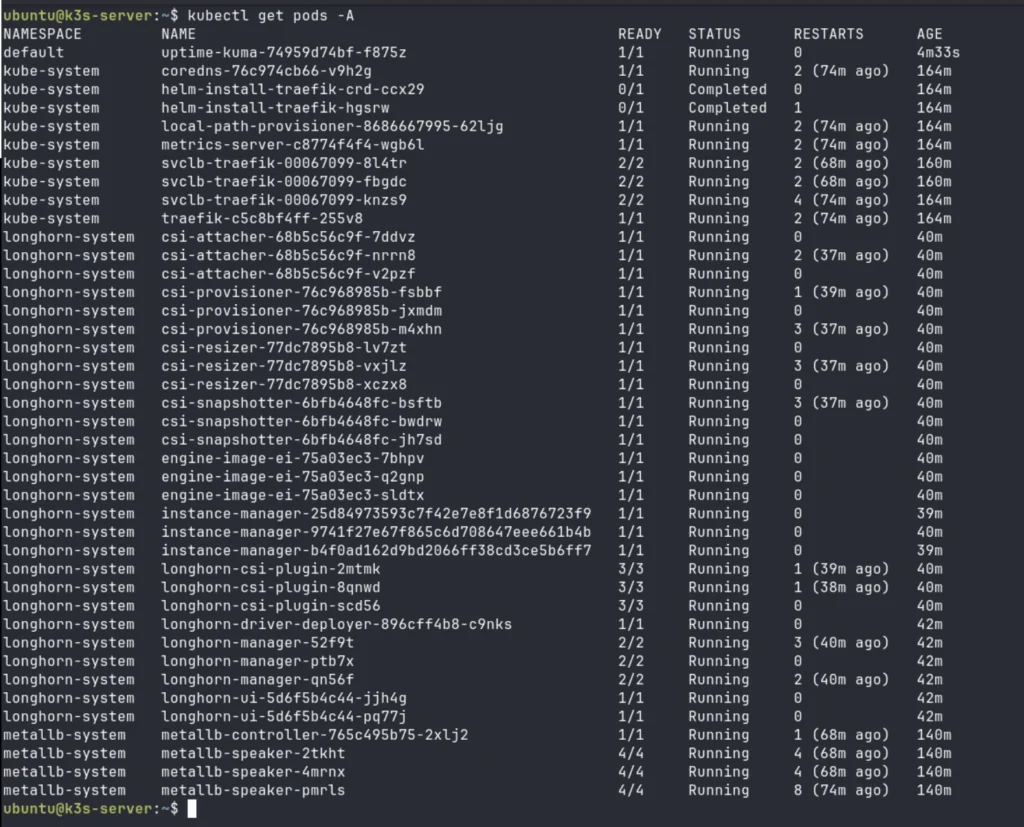
Key things to check here:
- Longhorn manager pods: You should see one
longhorn-managerpod per node. If a node is missing a manager pod, Longhorn cannot replicate volumes to it. - MetalLB speaker pods: One per node as well. The speaker is what answers ARP requests on the LAN.
- CrashLoopBackOff or Error: Any pod in these states needs investigation. Run
kubectl describe pod <pod-name> -n <namespace>followed bykubectl logs <pod-name> -n <namespace>to understand the failure. - Uptime Kuma RESTARTS column: Should be 0 or very low. A high restart count with the new PVC means the volume is not mounting correctly.
Persistent Volume Claims
kubectl get pvc -A
The STATUS column must read Bound. Any PVC in Pending state means either the storage class is wrong, Longhorn is not fully ready, or open-iscsi is missing on the scheduled node. Cross-reference with kubectl get pods -n longhorn-system to see if the CSI provisioner is running cleanly.
Services and External IPs
kubectl get svc -A
What healthy looks like:
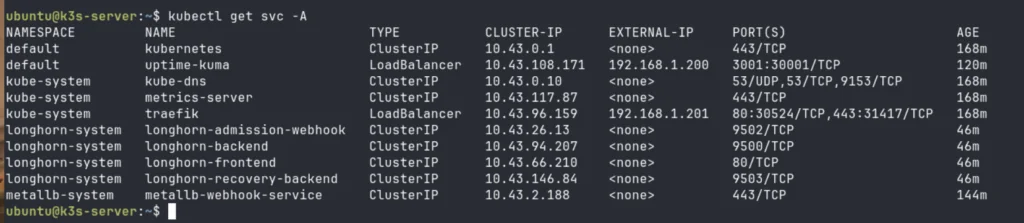
The critical check here is that uptime-kuma shows a real LAN IP under EXTERNAL-IP, not <pending>. If it still shows <pending> after applying the MetalLB config:
- Confirm the
IPAddressPoolandL2Advertisementwere both applied:kubectl get ipaddresspool,l2advertisement -n metallb-system - Confirm the IP range does not overlap with your router’s DHCP pool
- Check MetalLB controller logs:
kubectl logs -n metallb-system -l app=metallb,component=controller
Finally, do a live connectivity test from another device on your network:
curl -I http://<EXTERNAL-IP>:3001
You should get back an HTTP 200 OK, or a redirect such as 302 Found. Both indicate the service is reachable. If the request times out but the EXTERNAL-IP is assigned, check that the MetalLB speaker pods are running on all nodes and that nothing on your network is blocking ARP responses from the cluster nodes.
Part 7: What You Have Built
You now have a k3s Turing Pi 2.5 ARM cluster that behaves like infrastructure rather than a science experiment.
Kubernetes can schedule workloads across multiple nodes with different memory profiles, spreading load automatically and rescheduling pods if a node becomes unavailable. Longhorn keeps volume data replicated so a node failure does not mean data loss. MetalLB gives every service a stable, routable IP that does not change when pods restart or reschedule.
This matters a lot for the kinds of workloads covered in the LLM inference guide. Running inference on an ARM cluster is genuinely useful, but it only becomes reliable when the surrounding infrastructure is solid. Configuration data, prompt history, model management UIs, API gateway state, and monitoring dashboards all need persistent storage that survives restarts. And when you expose an inference endpoint to other devices on your network, a stable MetalLB IP is far more practical than chasing node IPs every time a pod moves.
The 32 GB worker node you just added is also significant for inference workloads specifically. Larger models require more RAM headroom for quantized weights and context buffers, and scheduling them to node3 via node affinity or resource requests keeps your smaller workers free for lighter services.
Part 8: What Comes Next
Your k3s Turing Pi 2.5 ARM cluster is now ready for workloads that matter, which means the next logical step is managing it properly.
GitOps with FluxCD lets you store every manifest in a Git repository and have the cluster reconcile itself automatically. No more manual kubectl apply from a terminal. Every change is reviewed, versioned, and auditable.
Observability with Prometheus and Grafana gives you visibility into what the cluster is actually doing: CPU and memory per node, Longhorn volume health, request rates through MetalLB, and pod restart patterns over time. Running a cluster you cannot observe is running it blind.
Real workloads in production-like setups on this hardware are more capable than most people expect. The use cases article covers what teams have actually shipped on Turing Pi hardware, from private AI infrastructure to self-hosted development environments. With persistent storage and load balancing in place, you are no longer blocked from exploring any of them.
Part 9: FAQ
Does Longhorn work on ARM and RK3588 specifically?
Yes. Longhorn ships multi-arch container images that include ARM64. The RK3588 is a standard ARM64 SoC, so there are no special patches or workarounds required. The main dependency is open-iscsi, which is available in the Ubuntu 22.04 ARM64 package repository. As long as iscsid is running on each node before Longhorn is installed, the setup is straightforward.
What IP range should I use for MetalLB?
Use a range within your LAN subnet that is outside your router’s DHCP allocation. Most home routers lease addresses from something like 192.168.1.100 to 192.168.1.199. A safe MetalLB range would then be 192.168.1.200-192.168.1.220. Check your router’s DHCP settings to confirm the boundary and leave a buffer. You can also reserve specific IPs by narrowing the pool to a single address per service.
Can Longhorn run on a 2-node cluster?
It can run, but with caveats. Longhorn needs at least as many available nodes as the replica count. With defaultReplicaCount=2 and only two nodes, a single node failure makes all volumes unavailable because both replicas cannot be satisfied. You can set defaultReplicaCount=1 to run on two nodes without this problem, but you lose redundancy entirely. Three nodes with two replicas is the practical minimum for meaningful fault tolerance.
What happens to my data if a node goes offline?
With two replicas across three nodes, losing one worker node leaves the other replica intact and the volume remains accessible. Longhorn will report a degraded state and begin rebuilding the missing replica once the failed node comes back online or a replacement is added. During the degraded period, the volume continues to function normally.
How is this different from what Article 1 set up?
Article 1 built the foundation: k3s installed on two nodes, static IPs configured, Uptime Kuma deployed with ephemeral storage. That setup is enough to run demos and get familiar with the cluster. This article adds what you need before running anything you depend on: a third node for proper scheduling headroom, MetalLB for stable service IPs, Longhorn for persistent replicated storage, and a migrated Uptime Kuma deployment that survives pod restarts.
Do I need to use Helm for MetalLB and Longhorn, or are there alternatives?
Helm is the most straightforward path and the one shown here. Both projects also ship plain Kubernetes manifests if you prefer not to use Helm. Longhorn additionally offers an installation via its UI and Rancher integration. For a homelab context, Helm simplifies version management and configuration without adding meaningful complexity.