
Once your code is already living in Gitea, the next repetitive step is usually obvious: every push still depends on someone remembering to run the tests, build the project, and check that nothing broke.
That works for a personal repository until it does not. A small change skips a local test. A pull request builds differently on another machine. A dependency update compiles on a laptop but fails on the server. The repository may be self-hosted, but the validation process is still manual.
Gitea Actions closes that gap without adding another hosted service. Workflows live inside the same repository, pushes and pull requests trigger them automatically, and a self-hosted runner performs the actual work on hardware you control.
For this guide, the runner is an RK1 inside the Turing Pi 2.5 cluster. Each CI job runs in an isolated ARM64 Docker container, checks out a small Go service, runs its unit tests, performs static analysis, and compiles a Linux ARM64 binary.
The goal is not to reproduce GitHub’s entire CI ecosystem in a homelab. It is to build the smallest useful CI loop:
git push
   |
   v
Gitea repository
   |
   v
Gitea Actions workflow
   |
   v
RK1 Gitea Runner
   |
   v
ARM64 job container
   |
   +--> go test
   +--> go vet
   +--> go build
   |
   v
pass / fail reported back to Gitea
This article builds directly on the existing Gitea on Turing Pi 2.5 deployment. It does not repeat the Gitea, PostgreSQL, NVMe, repository, or SSH setup covered there.
Part 1: How Gitea Actions Works
Gitea Actions separates the component that stores the workflow from the component that executes it.
The Gitea server watches repository events such as pushes and pull requests. When an event matches a workflow under:
.gitea/workflows/
Gitea creates a job and places it in the Actions queue.
A separate Gitea Runner polls the server for work. The runner advertises one or more labels describing what it can execute. A workflow chooses one of those labels through runs-on, and the runner starts the corresponding environment.
In this guide, the label is:
rk1-arm64
and it maps to:
docker://docker.gitea.com/runner-images:ubuntu-latest
That means a job containing:
runs-on: rk1-arm64
is executed inside Gitea’s Actions-oriented Ubuntu job image rather than directly on the RK1 host. The workflow then provisions Go 1.26.5 with actions/setup-go@v5.
This is useful for two reasons.
First, the build environment is more controlled and repeatable. The job image is selected by the runner label and the Go version is pinned in the workflow instead of depending on whatever happens to be installed on the RK1.
Second, the job is isolated from the host userspace. A broken build can fill its temporary container with files or install packages without modifying the base Ubuntu installation on the runner node.
Gitea Runner supports host execution as well, but containerized jobs are the better default for a shared CI node. Host jobs are useful when a workflow genuinely needs direct access to hardware or host-only tooling, not as the normal execution path.
The runner still needs access to a Docker daemon to create those job containers. This guide uses the RK1 host’s Docker socket because it is the simplest configuration for a trusted homelab. The security implications of that choice are covered later in the article.
Part 2: Gitea Actions vs Woodpecker CI
Gitea Actions is not the only lightweight CI option that fits this cluster. Woodpecker CI also supports Gitea and runs pipeline steps in containers.
The important difference is where the CI system lives.
| Gitea Actions | Woodpecker CI | |
| Integration | Built into Gitea | Separate CI server connected to Gitea |
| Worker | Gitea Runner | Woodpecker Agent |
| Workflow location | .gitea/workflows/*.yaml | .woodpecker/*.yaml or .woodpecker.yaml |
| Workflow style | Mostly GitHub Actions compatible | Woodpecker-specific pipeline syntax |
| Repository checkout | Usually an Action such as actions/checkout | Built-in clone step |
| Additional server UI | No separate CI server | Separate Woodpecker UI |
| Gitea connection | Native | Gitea OAuth application + webhook integration |
| Best fit here | Existing Gitea users wanting the fewest moving parts | Users who want an independent CI platform |
Woodpecker is a legitimate option, especially if you want CI to remain separate from the Git forge or want the same CI server to work across different forge platforms.
It also has a straightforward container-first pipeline model. Each step chooses an image and executes commands inside it, and Woodpecker automatically clones the repository into a shared workspace before the configured steps begin.
The tradeoff is another service to operate. Woodpecker requires its own server, agent, authentication integration, webhooks, and UI. Gitea Actions already exists inside the Gitea instance from the previous article, so only a runner needs to be added.
For this cluster, that makes Gitea Actions the more direct next step.
This article therefore uses Gitea Actions for the actual implementation and keeps Woodpecker as an alternative rather than deploying both systems.
Part 3: CI Environment Used in This Guide
The existing Gitea deployment remains unchanged. The only new infrastructure component is a runner on an RK1 node.
| Component | Configuration |
| Board | Turing Pi 2.5 |
| Runner hardware | Turing RK1 |
| Runner architecture | ARM64 / AArch64 |
| Operating system | Ubuntu 24.04.4 LTS ARM64 |
| Kernel | 6.1.0-1025-rockchip |
| Git server | Gitea 1.26.4 |
| Runner | Gitea Runner 3.0.2 |
| Job execution | Docker containers |
| CI job image | docker.gitea.com/runner-images:ubuntu-latest |
| Go toolchain | Go 1.26.5 via actions/setup-go@v5 |
| Demo workload | Go HTTP service |
| Workflow triggers | Push and pull request |
Gitea Runner is released independently from the Gitea server, so its version number does not track Gitea itself. Modern runner documentation expects Gitea 1.21 or later, which makes the existing Gitea 1.26.4 deployment suitable for the runner used here.
The official gitea/runner:3.0.2 image includes a native Linux ARM64 build, so the runner itself does not require emulation on the RK1.
The runner does not need a 32GB RK1 for this workload. Compilation requirements depend on the project being built, but the small Go application in this guide is intentionally modest. The useful architectural point is that CI capacity can be placed on whichever node has spare CPU time rather than consuming resources on the node hosting Gitea itself.
Keeping the runner separate from the Gitea server is useful when the cluster has a spare node. That separation matters more as builds become heavier because CI workloads can consume CPU, memory, storage I/O, and Docker resources in short bursts.
Part 4: Prepare the RK1 Runner Node
SSH into the RK1 that will execute CI jobs.
Confirm the architecture, kernel, and operating system:
uname -m
uname -r
cat /etc/os-release
The architecture should report:
aarch64
Create a persistent directory for the runner:
sudo mkdir -p /opt/gitea-runner
sudo mkdir -p /mnt/nvme/gitea-runner/data

sudo chown -R "$USER":"$USER" /opt/gitea-runner
sudo chown -R "$USER":"$USER" /mnt/nvme/gitea-runner

cd /opt/gitea-runner
The /data directory is important because Gitea Runner stores its registration state there. If that state disappears when the container is recreated, the runner may register again as a new runner and leave a stale entry behind in Gitea.
The runner state is tiny, so NVMe is not required for performance. We use /mnt/nvme because persistent service data in this cluster is already kept there.
If your runner node does not have NVMe mounted, replace:
/mnt/nvme/gitea-runner/data
with another persistent path.
Part 5: Create a Repository-Level Runner Token
Gitea can register runners at three levels:
- Instance level: available to repositories across the entire Gitea instance
- Organization level: available to repositories in one organization
- Repository level: available to one repository
For the first CI runner, repository scope is the safest and simplest choice.
Create a repository called:
rk1-ci-demo
or use another test repository you do not mind modifying.
If Actions are not already enabled for this repository, open the repository settings and enable:
Enable Repository Actions
After saving that setting, open the repository’s Actions runner configuration:
Settings
-> Actions
-> Runners
Copy the repository registration token.
Do not commit this token into the repository or place it directly in compose.yaml.
Create an environment file on the runner node:
nano /opt/gitea-runner/.env
Add:
GITEA_INSTANCE_URL=http://<gitea-node-ip>:3000
GITEA_RUNNER_REGISTRATION_TOKEN=<registration-token>
GITEA_RUNNER_NAME=rk1-arm64-runner
GITEA_RUNNER_LABELS=rk1-arm64:docker://docker.gitea.com/runner-images:ubuntu-latest
Replace <gitea-node-ip> with the LAN address of the RK1 running Gitea.
Do not use:
localhost
or:
127.0.0.1
for the Gitea URL.
The runner container and the job containers have their own network namespaces. localhost inside either container refers to that container, not to the Gitea server.
The LAN address gives both the runner and its job containers a route back to Gitea.
Protect the file:
chmod 600 /opt/gitea-runner/.env
Part 6: Deploy Gitea Runner on ARM64
Create the Compose file:
nano /opt/gitea-runner/compose.yaml
Add:
services:
  runner:
    image: docker.io/gitea/runner:3.0.2
    container_name: gitea-runner
    restart: unless-stopped

    environment:
      GITEA_INSTANCE_URL: ${GITEA_INSTANCE_URL}
      GITEA_RUNNER_REGISTRATION_TOKEN: ${GITEA_RUNNER_REGISTRATION_TOKEN}
      GITEA_RUNNER_NAME: ${GITEA_RUNNER_NAME}
      GITEA_RUNNER_LABELS: ${GITEA_RUNNER_LABELS}

    volumes:
      - /mnt/nvme/gitea-runner/data:/data
      - /var/run/docker.sock:/var/run/docker.sock
Validate it:
cd /opt/gitea-runner
docker compose config --quiet
No output means the Compose file parsed successfully.
Pull the runner image:
docker compose pull
Confirm Docker selected ARM64:
docker image inspect docker.io/gitea/runner:3.0.2 \
  --format 'Architecture={{.Architecture}} OS={{.Os}}'
Expected:
Architecture=arm64 OS=linux
Start the runner:
docker compose up -d
Check its status:
docker compose ps
Then inspect the initial logs:
docker logs --tail 100 gitea-runner
The runner should register with the Gitea instance and begin polling for jobs.
Return to:
Repository
-> Settings
-> Actions
-> Runners
The new runner should appear as Idle with the label:
rk1-arm64
The custom label is doing two jobs at once.
The first part:
rk1-arm64
is the name workflows reference.
The second part:
docker://docker.gitea.com/runner-images:ubuntu-latest
tells Gitea Runner to create the job inside Gitea’s Actions-oriented Ubuntu runner image. The workflow then installs the exact Go version it needs with actions/setup-go, so Go still does not have to be installed directly on the RK1.
Part 7: Build a Small Go Project for the CI Test
Clone the test repository to your normal development machine:
git clone ssh://git@<gitea-node-ip>:2222/<your-username>/rk1-ci-demo.git
cd rk1-ci-demo
Create the Go module:
cat > go.mod <<'EOF'
module example.com/rk1-ci-demo

go 1.26
EOF
Create the application:
cat > main.go <<'EOF'
package main

import (
    "fmt"
    "log"
    "net/http"
)

func greeting(name string) string {
    if name == "" {
        name = "Turing Pi"
    }

    return fmt.Sprintf("Hello, %s!", name)
}

func healthHandler(w http.ResponseWriter, r *http.Request) {
    w.WriteHeader(http.StatusOK)
    _, _ = w.Write([]byte("ok"))
}

func main() {
    http.HandleFunc("/health", healthHandler)

    log.Println("listening on :8080")
    log.Fatal(http.ListenAndServe(":8080", nil))
}
EOF
Add unit tests:
cat > main_test.go <<'EOF'
package main

import (
    "net/http"
    "net/http/httptest"
    "testing"
)

func TestGreeting(t *testing.T) {
    got := greeting("RK1")
    want := "Hello, RK1!"

    if got != want {
        t.Fatalf("greeting() = %q, want %q", got, want)
    }
}

func TestGreetingDefault(t *testing.T) {
    got := greeting("")
    want := "Hello, Turing Pi!"

    if got != want {
        t.Fatalf("greeting() = %q, want %q", got, want)
    }
}

func TestHealthHandler(t *testing.T) {
    request := httptest.NewRequest(http.MethodGet, "/health", nil)
    recorder := httptest.NewRecorder()

    healthHandler(recorder, request)

    if recorder.Code != http.StatusOK {
        t.Fatalf("status = %d, want %d", recorder.Code, http.StatusOK)
    }

    if recorder.Body.String() != "ok" {
        t.Fatalf("body = %q, want %q", recorder.Body.String(), "ok")
    }
}
EOF
If Go is installed locally, you can validate the project before pushing:
go test ./...
go vet ./...
go build ./...
That local step is optional. The point of the next section is that Gitea will perform the same checks automatically even when a developer does not.
Commit the application first:
git add go.mod main.go main_test.go
git commit -m "Add CI demo service"
git push -u origin main
At this point there is still no workflow, so the repository behaves like an ordinary Gitea project.
Part 8: Create the Gitea Actions Workflow
Gitea Actions reads workflows from:
.gitea/workflows/
On your development machine, from inside the rk1-ci-demo repository, create the workflow directory:
mkdir -p .gitea/workflows
Create:
nano .gitea/workflows/ci.yaml
Add:
name: ARM64 CI

on:
  push:
    branches:
      - main
  pull_request:

jobs:
  test-and-build:
    runs-on: rk1-arm64

    steps:
      - name: Check out repository
        uses: actions/checkout@v4

      - name: Set up Go
        uses: actions/setup-go@v5
        with:
          go-version: '1.26.5'

      - name: Show runner environment
        run: |
          uname -m
          go version
          go env GOOS GOARCH

      - name: Run unit tests
        run: go test -v ./...

      - name: Run static analysis
        run: go vet ./...

      - name: Build ARM64 binary
        run: |
          mkdir -p dist
          CGO_ENABLED=0 go build \
            -trimpath \
            -ldflags="-s -w" \
            -o dist/rk1-ci-demo \
            .

      - name: Verify build output
        run: |
          ls -lh dist/rk1-ci-demo
          sha256sum dist/rk1-ci-demo
This is deliberately small, but it performs a complete CI job.
The checkout step retrieves the repository into the job workspace.
actions/setup-go@v5 installs Go 1.26.5 for the job. This keeps the toolchain version explicit in the workflow instead of depending on whatever happens to exist in the base job image.
The environment step confirms which architecture and Go toolchain are actually executing the job. On the RK1 runner, uname -m should report aarch64 and go env GOARCH should report arm64.
The test step executes the unit tests.
The go vet step performs static analysis for suspicious constructs that compile but may still represent mistakes.
The build step compiles a Linux ARM64 executable into:
dist/rk1-ci-demo
Finally, the checksum provides an easy way to identify the produced binary in the job log.
The workflow intentionally does not deploy anything.
That boundary matters. Continuous integration answers:
Does this change build and pass its checks?
Deployment answers:
Should this validated change be applied to a running environment?
The existing FluxCD GitOps guide covers the deployment side. This article stops at producing a validated build.
Commit the workflow:
git add .gitea/workflows/ci.yaml
git commit -m "Add ARM64 CI workflow"
git push
That push is the first real end-to-end test.
Part 9: Watch the First CI Job Run on the RK1
Open the repository in Gitea and select:
Actions
A new ARM64 CI run should appear automatically.
Open the job and follow each step:
Set up job
Check out repository
Set up Go
Show runner environment
Run unit tests
Run static analysis
Build ARM64 binary
Verify build output
Complete job
While the job is running, watch the runner node directly:
watch -n 0.5 docker ps
Gitea Runner creates a temporary job container for the workflow. After the job finishes, that container is removed automatically, while the persistent gitea-runner container remains online and ready for the next job.
The environment section of the Actions log should confirm that the workflow is executing natively on ARM64:
aarch64
go version go1.26.5 linux/arm64
linux
arm64
The unit tests should finish successfully:
PASS
ok      example.com/rk1-ci-demo
and the build step should create:
dist/rk1-ci-demo
In the first successful end-to-end run on the RK1, the complete job finished in 2 minutes 37 seconds.
Set up job            1m 29s
Check out repository      1s
Set up Go                 26s
Show runner environment    0s
Run unit tests            17s
Run static analysis        4s
Build ARM64 binary        15s
Verify build output        0s
Complete job               5s
Most of the first-run time was spent preparing the job environment rather than compiling the small Go application, so this should be treated as a first-run observation rather than a general RK1 CI benchmark.
The important change is that validation now happens because a commit exists, not because someone remembered to run a command.
A developer can push from a laptop, close the terminal, and let the RK1 independently answer whether the code still passes its checks.
Part 10: Prove That CI Actually Catches a Bad Change
A green pipeline is useful, but deliberately making it fail proves that the test result is connected to the commit rather than simply showing a successful demo.
Edit the first test in main_test.go.
Change:
want := "Hello, RK1!"
to:
want := "Hello, RK1"
The application still returns:
Hello, RK1!
so the test expectation is now intentionally wrong.
Commit and push the broken test:
git add main_test.go
git commit -m "Break greeting test intentionally"
git push
A second Actions run should start automatically.
This time, Run unit tests should fail with output similar to:
greeting() = "Hello, RK1!", want "Hello, RK1"
FAIL
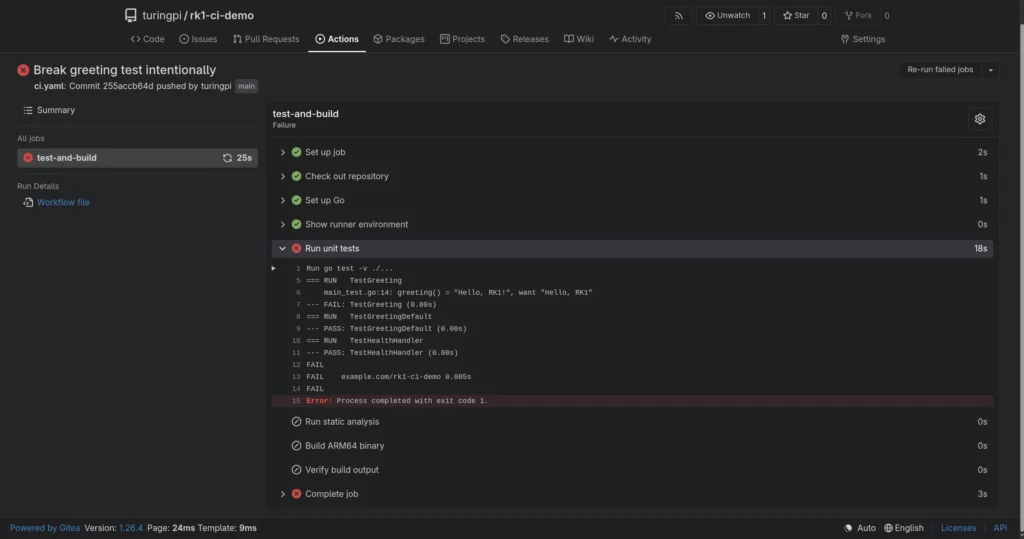
The remaining build steps should not continue because the test command returned a non-zero exit status.
Now restore the correct expectation:
want := "Hello, RK1!"
Commit and push again:
git add main_test.go
git commit -m "Restore greeting test"
git push
The next run should return to green.
That three-commit sequence demonstrates the complete CI loop:
working commit
    -> CI passes

broken test
    -> CI fails

fixed test
    -> CI passes again
The runner is not simply executing a scheduled script. It is validating the exact repository revision that triggered the workflow and reporting the result back to Gitea.
Part 11: Run the Same Checks on Pull Requests
The workflow includes:
pull_request:
so the same test-and-build job also runs when a pull request is opened or updated.
On your development machine, make sure you are inside the rk1-ci-demo repository, then create a new branch:
git checkout -b ci-demo-change
Next, edit main.go:
nano main.go
Find the default greeting inside the greeting() function:
name = "Turing Pi"
and change it to:
name = "Turing Pi CI"
Because the expected output has changed, update the corresponding unit test as well.
Open main_test.go:
nano main_test.go
Find the default greeting expectation:
want := "Hello, Turing Pi!"
and change it to:
want := "Hello, Turing Pi CI!"
This keeps the application and its test in agreement, so the branch should still pass CI.
Commit both modified files:
git add main.go main_test.go
git commit -m "Update default greeting"
Push the new branch to Gitea:
git push -u origin ci-demo-change
Now open the rk1-ci-demo repository in Gitea and create a pull request with:
base: main
compare/head: ci-demo-change
Open the pull request from ci-demo-change into main.
Because the workflow listens for pull_request events, Gitea should automatically queue the same ARM64 CI workflow for the pull request revision.
The pull request should receive the result of the same checks already used for direct pushes:
Check out repository
Set up Go
Show runner environment
Run unit tests
Run static analysis
Build ARM64 binary
Verify build output
If every step succeeds, the pull request now has a machine-generated record showing that the proposed revision builds and passes the repository’s defined checks before it reaches main.
This is where CI becomes more useful than relying on a local pre-push habit. The validation result belongs to the pull request itself rather than to one developer’s terminal session.
For repositories where multiple people contribute, branch protection can be layered on top so merges depend on successful checks. For a personal homelab repository, simply attaching the CI result to every pull request is already enough to catch many accidental regressions before they reach main.
Part 12: What Is Actually Self-Hosted Here?
The Git repository, workflow scheduler, runner, job execution, logs, and result reporting all run on infrastructure you control.
The workflow still depends on external resources as written. actions/checkout@v4 is normally fetched externally, the runner may need to pull its job image, and actions/setup-go@v5 may download the requested Go toolchain.
So this setup is self-hosted CI, but it is not a fully offline build environment.
A completely local version would require mirroring the required Actions, container images, and toolchain resources inside your own infrastructure. That is outside the scope of this guide.
Part 13: Runner Security and ARM64 Limitations
A self-hosted CI runner executes repository-controlled code, so it should be treated as a privileged service.
Docker socket access
This setup mounts:
/var/run/docker.sock
into the runner container.
That gives the runner access to the host Docker daemon and effectively grants very broad control over the machine.
Because the reusable registration token is passed to the runner container as an environment variable, a workflow with access to the host Docker daemon may also be able to recover it through Docker container metadata.
For that reason:
- use this runner only for repositories you trust
- prefer a dedicated RK1 when possible
- avoid running arbitrary public pull requests
- use Docker-in-Docker or rootless Docker-in-Docker if stronger isolation is required
The repository registration token should also be treated as a credential and kept out of the repository.
ARM64 compatibility
Not every Action or container image supports ARM64.
Typical failures come from:
- amd64-only binaries
- amd64-only container images
- scripts that assume x86_64
- dependencies without Linux ARM64 builds
A common symptom is:
exec format error
If that appears, check the Action, binary, or container image before assuming the runner itself is broken.
Gitea Actions is not identical to GitHub Actions
Gitea supports much of the GitHub Actions workflow model, but some syntax and GitHub-specific behavior differs.
Simple checkout, test, lint, build, and packaging workflows generally translate well. More complex workflows copied from GitHub should be checked against Gitea’s compatibility documentation before being used unchanged.
Part 14: When Woodpecker Makes More Sense
Gitea Actions is the simpler fit when Gitea is already your Git server and you want CI integrated directly into the same interface.
Woodpecker makes more sense when you want CI to remain a separate platform, prefer its container-first pipeline model, or need one CI system to work across multiple supported Git forges.
For this setup, adding a single ARM64 runner to the existing Gitea deployment is enough. Running a separate Woodpecker server and agent would add another service layer without solving a problem we currently have.
Troubleshooting
The runner never appears in Gitea
Check the runner logs:
docker logs --tail 100 gitea-runner
Then verify the instance URL:
cat /opt/gitea-runner/.env
GITEA_INSTANCE_URL must point to an address the runner container can reach, for example:
http://192.168.x.x:3000
Do not use localhost or 127.0.0.1.
Also confirm that the repository registration token is still valid.
The runner is online but the workflow stays queued
Open:
Repository
-> Settings
-> Actions
-> Runners
and confirm the runner advertises:
rk1-arm64
The workflow must request the same label:
runs-on: rk1-arm64
If you changed the label in .env, recreate the runner container:
cd /opt/gitea-runner
docker compose up -d --force-recreate
actions/checkout@v4 cannot reach the repository
The job container must be able to reach the Gitea instance independently of the runner container.
If the runner was registered against:
http://localhost:3000
the job container will try to reach itself instead of Gitea.
Change GITEA_INSTANCE_URL to the Gitea node’s LAN address, then recreate the runner container.
The job fails with exec format error
This usually means an Action, binary, or container image does not support ARM64.
Confirm the runner architecture:
uname -m
It should report:
aarch64
You can also inspect the job image:
docker image inspect docker.gitea.com/runner-images:ubuntu-latest \
  --format 'Architecture={{.Architecture}} OS={{.Os}}'
On the RK1, it should resolve to:
Architecture=arm64 OS=linux
If a third-party Action is failing, check whether it downloads an amd64-only executable or uses an amd64-only image.
The runner cannot start job containers
Confirm Docker is running:
systemctl status docker
Check that the Docker socket exists:
ls -l /var/run/docker.sock
Then verify that it is mounted into the runner:
docker inspect gitea-runner \
  --format '{{json .Mounts}}'
The Compose file should include:
- /var/run/docker.sock:/var/run/docker.sock
The job image or Go toolchain is downloaded repeatedly
The host Docker daemon caches image layers, so the job image should normally remain available between runs.
Check with:
docker images docker.gitea.com/runner-images
actions/setup-go may still download the requested Go toolchain for a fresh job environment. If repeated setup time becomes a problem, caching or a custom job image can be added later.
A workflow works on GitHub but fails in Gitea
Gitea Actions is compatible with much of the GitHub Actions workflow model, but not every feature behaves identically.
For debugging, reduce the workflow to something minimal:
jobs:
  test:
    runs-on: rk1-arm64
    steps:
      - uses: actions/checkout@v4
      - run: uname -m
If that works, add the remaining steps back one at a time.
CI jobs are affecting other services
Builds can briefly consume substantial CPU, memory, or storage I/O.
If that becomes a problem, move the runner to another RK1 or limit which repositories can use it.
One advantage of the Turing Pi cluster is that Gitea can stay on one node while CI workloads use spare compute on another.
What You’ve Built
At this point, Gitea is doing more than storing repositories.
A push from your development machine now becomes a complete validation cycle: Gitea detects the repository event, queues the workflow, the RK1 runner picks it up, launches an ARM64 job container, provisions the required Go toolchain, runs the tests and static analysis, builds the binary, and reports the result back to the same repository where the change was made.
The important part is not any individual command in that chain. It is that the validation is now tied to the repository itself.
A successful run showed that the RK1 could execute the complete workflow natively on ARM64. The deliberate broken test then proved that the pipeline was not simply producing a green status by default: the test failure stopped the later build steps and Gitea recorded the failed revision. Restoring the test returned the workflow to green again.
That gives us the full CI loop:
write code
   -> commit
   -> push
   -> Gitea queues the workflow
   -> RK1 runner executes it on ARM64
   -> tests, vet, and build run automatically
   -> Gitea records pass or fail
The same workflow also runs against pull requests, which moves validation away from a developer’s local terminal and into the repository’s review process. Anyone looking at the proposed change can see whether that exact revision passed the checks defined by the project.
For this guide, the pipeline deliberately stops at validation. It does not deploy the application or modify the running cluster. CI answers whether a change is healthy enough to move forward; deployment remains a separate concern, which fits naturally with the existing FluxCD GitOps workflow.
There is also nothing particularly special about the small Go service used here. It is only a compact workload that makes the CI path easy to verify. The same runner can be used for larger ARM64 projects, container builds, linting, packaging, test suites, or other repository-driven automation as long as the required Actions and dependencies support the architecture.
The end result is a small but complete self-hosted CI system: Gitea provides the repository and workflow control plane, while an RK1 provides the compute that actually validates the code.
For a homelab or small development environment, that is a meaningful step up from simply self-hosting Git. The cluster is no longer just storing code; it is actively participating in the development process every time that code changes.
Related Articles
- Gitea on Turing Pi 2.5: Self-Hosted Git Server on ARM64 with NVMe and PostgreSQL: Set up the Gitea instance used throughout this guide, including repository access, SSH, PostgreSQL, and persistent storage.
- GitOps on Turing Pi 2.5: Automate Your Cluster with FluxCD and Gitea: Continue from CI into deployment by letting FluxCD reconcile approved changes from Gitea into the k3s cluster.
- Turing Pi 2.5 + RK1 Complete Setup Guide: Prepare the Turing Pi 2.5, RK1 nodes, networking, Ubuntu, storage, and k3s environment used across the series.
- Ansible on Turing Pi 2.5: Automate Your RK1 Cluster with Infrastructure-as-Code: Automate repeatable configuration across multiple RK1 nodes instead of maintaining each machine manually.
- Self-Hosted Apps on Turing Pi 2.5: Explore other services that can run alongside developer infrastructure such as Gitea and CI on the same ARM64 cluster.
FAQ
Does Gitea Actions work on ARM64?
Yes. Gitea Runner supports native Linux ARM64 execution, and Docker-backed jobs can run ARM64 images on an RK1. The workflow still depends on ARM-compatible Actions, binaries, and container images.
Do I need a separate RK1 for Gitea Runner?
No. The runner can share a node with other services. A separate RK1 mainly gives you better isolation from bursty build load and reduces the impact of giving the runner access to the host Docker daemon. For small private repositories, sharing a node is perfectly reasonable.
Is Gitea Actions the same as GitHub Actions?
No. Gitea Actions follows much of the GitHub Actions workflow model and can use many existing Actions, but there are differences in syntax, expressions, tokens, and some GitHub-specific behavior. Straightforward checkout, test, lint, build, and packaging workflows are the easiest to reuse.
Why use a custom rk1-arm64 runner label?
The label makes the target environment explicit. A workflow using:
runs-on: rk1-arm64
is intentionally selecting the RK1 ARM64 runner instead of presenting it as a generic hosted machine. The label maps to the job image configured on the runner, while the workflow provisions the exact Go version it needs with actions/setup-go.
Why not run CI jobs directly on the RK1 host?
Host execution makes workflows depend on software installed directly on the node and gives them much more direct access to the system. Containerized jobs provide a cleaner, reproducible environment and are easier to discard after each run.
Is mounting /var/run/docker.sock safe?
It should be treated as privileged access. A workflow that can control the host Docker daemon can potentially gain broad control over the machine.
For a private homelab with trusted repositories, the socket-backed setup is simple and practical. For less trusted workloads, Gitea Runner also supports Docker-in-Docker and rootless Docker-in-Docker approaches that provide stronger separation.
Can Gitea Actions run without internet access?
Yes, but every dependency required by the workflow must be available locally.
In this guide, the checkout Action, job image, and Go toolchain may all require external access on a fresh setup. A fully offline environment would need those Actions, images, and toolchain resources mirrored or cached inside your own infrastructure.
Should I use Gitea Actions or Woodpecker CI?
Use Gitea Actions when Gitea is already your Git server and you want the smallest number of additional components.
Woodpecker is a better fit when you want CI to remain a separate platform, prefer its pipeline model, or want one CI system to work across multiple supported Git forges.
Can I build Docker images with this runner?
Yes. The runner already has access to the host Docker daemon, so workflows can build container images as well.
This guide stops at compiling and validating an ARM64 binary because image building introduces additional caching, registry, and privilege considerations that are outside the scope of the basic CI setup.
Can I use the same runner for multiple repositories?
Yes, if you register it at the organization or instance level instead of repository level.
This guide uses a repository-scoped runner because it limits the runner to a single trusted repository and keeps the initial setup easier to reason about.
What happens if an Action does not support ARM64?
The job may fail even though Gitea Runner itself is working correctly. Common causes include amd64-only binaries, amd64-only container images, or setup scripts that assume x86_64.
An exec format error is a common sign that something in the workflow does not support ARM64.
Where should deployment happen after CI passes?
Keep deployment separate from this workflow.
CI should answer whether a change builds and passes its checks. Deployment should happen through a separate process, such as the existing FluxCD GitOps setup, which reconciles approved configuration changes into the k3s cluster.