
Google Photos gives you 15GB free. After that, every additional gigabyte becomes a recurring subscription. If you’re looking for a self-hosted Google Photos alternative, there is a better option: run Immich on the Turing Pi 2.5 cluster you already own, automatically back up every photo from your phone, and keep your entire library under your control.
Immich is not Nextcloud Photos with a different name. It is a purpose-built photo and video management platform designed to replicate the Google Photos experience on your own hardware. You get automatic backup from iOS and Android, a timeline organized by date, face recognition across your entire library, CLIP-powered semantic search that understands queries like “beach sunset” or “birthday party,” and a Memories view that resurfaces photos from the same day in previous years.
By the end of this article, you’ll have Immich running on ARM64 with both media and PostgreSQL data stored on NVMe, automatic mobile backup enabled, and machine learning features processing in the background. On a 32GB RK1 with dedicated NVMe storage, this is powerful enough to manage a real photo library containing tens of thousands of photos and videos, not just a small test deployment.
What This Guide Covers
This guide walks through deploying Immich on a single RK1 node with all media and database files stored on NVMe. It covers the Immich container architecture, environment configuration, first login and mobile backup setup, machine learning features including face recognition and semantic search on ARM64, and backup considerations for a photo library that cannot be recreated.
It is written for Turing Pi users who want to centralize photos and videos from all of their devices into a single searchable library running on hardware they control.
Prerequisites
Before starting, make sure the following requirements are met:
- Turing Pi 2.5 with RK1 module running Ubuntu 22.04 ARM64 (8GB, 16GB, or 32GB)
- NVMe SSD installed and detected by the operating system
- Docker Engine and Docker Compose installed and working
- SSH access to the RK1 node with sudo privileges
- A static IP address or DHCP reservation
- Basic node setup completed (networking, updates, SSH access, and Docker installation)
Part 1: Why Immich Over Nextcloud for Photos
If you just finished setting up Nextcloud, the obvious question is whether you actually need Immich. In most cases, the answer is yes. Not because Nextcloud is missing functionality, but because these platforms solve different problems and work best together.
Nextcloud is a general-purpose personal cloud. It handles files, calendars, contacts, notes, backups, and synchronization across devices. Photo management is only one small part of that broader platform. Immich takes the opposite approach. It is purpose-built for managing photo and video libraries, and nearly every feature is optimized around that single use case.
The difference becomes obvious the moment you open the mobile app. Immich feels immediately familiar to anyone coming from Google Photos. Photos are organized into a chronological timeline, backups run automatically in the background, and new uploads appear in the library almost immediately. The experience is designed around opening the app and finding memories, people, places, and moments, not browsing folders.
Immich’s machine learning features are also substantially more advanced. Face recognition uses InsightFace to detect and cluster people across your library, allowing you to assign names and instantly find photos of the same person years later. CLIP-powered semantic search generates image embeddings that make natural-language queries possible. Searches such as “snowy mountain,” “birthday cake,” or “golden retriever” work without manual tagging, album organization, or metadata management.
Nextcloud Photos provides basic gallery functionality, but it does not offer the same level of face recognition, semantic search, timeline experience, or mobile-first photo management. The goal of Nextcloud Photos is to browse files that happen to be images. The goal of Immich is to replace Google Photos entirely.
The good news is that you do not need to choose between them. On a 32GB RK1 node, both services can run comfortably side by side. Nextcloud remains the home for documents, backups, calendars, contacts, and general file synchronization. Immich becomes the dedicated platform for photos and videos. Together they provide a complete self-hosted alternative to the cloud services most people rely on today.
Part 2: Immich Stack Overview
Before deploying anything, it helps to understand how Immich is structured. Although it appears as a single application in the browser, the platform is actually composed of four containers that work together behind the scenes. Each has a specific responsibility, and understanding those responsibilities makes troubleshooting much easier later.
immich-server
The immich-server container is the heart of the platform. It serves the web interface, exposes the REST API used by the mobile apps, processes uploads, schedules background jobs, and coordinates communication with the other services.
If you encounter older tutorials mentioning an immich-microservices container, ignore them. Prior to Immich v2.x, background processing lived in a separate service. That container has since been removed, and all application logic now runs inside immich-server.
immich-machine-learning
The immich-machine-learning container powers the features that make Immich feel like a modern photo platform rather than a simple gallery.
It runs two primary machine learning workloads:
- InsightFace for face detection, face clustering, and facial embeddings
- CLIP (ViT-B-32 by default) for semantic image search
Whenever a new photo is uploaded, Immich generates embeddings in the background so searches such as “beach sunset,” “birthday party,” or “golden retriever” work without manual tagging.
database
The database container stores far more than user accounts and application settings. It contains the metadata that makes Immich useful: albums, face recognition results, semantic search embeddings, sharing information, and the relationships between every asset in your library.
Immich ships with a custom PostgreSQL image maintained by the project:
ghcr.io/immich-app/postgres:14-vectorchord0.4.3-pgvectors0.2.0
This is not a standard PostgreSQL deployment. The image includes the vectorchord and pgvectors extensions required for vector similarity search. Those extensions power both face recognition and semantic search.
redis (Valkey)
The final component is Valkey, the Redis-compatible fork currently used by Immich.
Valkey acts as a high-speed message broker between services. When photos are uploaded, jobs are placed into queues that the machine learning worker processes asynchronously. It also handles session caching and other transient application data.
Without Valkey, the server and ML worker would have no efficient way to coordinate background processing.
Why Version Matters
One of the most common causes of deployment failures is following outdated tutorials.
Immich evolves rapidly and has introduced several significant architectural changes across major releases. Between v1.x and v2.x:
- The database backend moved from
pgvecto.rstovectorchord - Redis was replaced by Valkey
- The
immich-microservicescontainer was removed - Docker Compose templates were updated accordingly
For that reason, always download the official docker-compose.yml and environment template directly from the Immich release you are installing. Avoid copying configuration snippets from blog posts, YouTube videos, or older GitHub gists unless they explicitly target the same Immich version.
Part 3: Deploy Immich on ARM64
If you’ve been following this series, the NVMe partition is already mounted at /mnt/nvme from the Self-Hosted Nextcloud on Turing Pi 2.5: ARM64, NVMe, and SMB Storage setup. We’ll use that same NVMe storage for both the Immich media library and PostgreSQL database to avoid the I/O bottlenecks that come with SD cards or eMMC storage.
Create the Immich working directory:
mkdir -p /mnt/nvme/immich
cd /mnt/nvme/immich
Download the Official Immich Configuration
Always start with the configuration files provided by the Immich release you intend to run. Immich evolves quickly, and older Compose examples often become outdated.
Download the latest Compose file and environment template:
wget -O docker-compose.yml https://github.com/immich-app/immich/releases/latest/download/docker-compose.yml
wget -O .env https://github.com/immich-app/immich/releases/latest/download/example.env
If you prefer to pin a specific release, replace latest with the desired version tag.
Configure Storage on NVMe
Open the .env file and update the following values:
UPLOAD_LOCATION=/mnt/nvme/immich/library
DB_DATA_LOCATION=/mnt/nvme/immich/postgres

TZ=<your-timezone>

IMMICH_VERSION=<immich-version>

DB_PASSWORD=<strong-password>

DB_USERNAME=postgres
DB_DATABASE_NAME=immich
Replace <your-timezone> with your local timezone (for example, America/New_York, Europe/Berlin, or Asia/Kolkata). Replace <immich-version> with either a specific release such as v2.7.5 or v2 to track the current major version. Generate a strong password for <strong-password> before deploying the stack.
For this deployment, the two most important variables are:
UPLOAD_LOCATIONstores photos, videos, thumbnails, and generated assets.DB_DATA_LOCATIONstores the PostgreSQL database.
Both should reside on NVMe storage. Immich continuously performs database writes, thumbnail generation, metadata updates, and machine learning indexing. While the application will technically run on eMMC or SD storage, performance degrades noticeably as libraries grow. NVMe eliminates this bottleneck and is strongly recommended for any deployment expected to manage more than a few thousand assets.
Create the required directories:
mkdir -p /mnt/nvme/immich/library
mkdir -p /mnt/nvme/immich/postgres
Start the Stack
Launch the deployment:
docker-compose up -d
The first startup may take several minutes because the machine learning container downloads model files and initializes its local cache.
Verify container status:
docker-compose ps
A healthy deployment should show output similar to:
NAME                     STATUS
immich_server            Up
immich_machine_learning  Up
immich_postgres          Up
immich_redis             Up
First Login and Library Configuration
Navigate to:
http://<node-ip>:2283
On the first visit, Immich will prompt you to create an administrator account. Enter your name, email address, and password, then complete the setup process.
After logging in, the timeline will be empty. This is expected because no photos have been uploaded yet.
The initial page load may take a few seconds while Immich finishes background initialization and prepares the machine learning services. On the RK1, this typically takes less than a minute after the containers have started.
Once the dashboard loads successfully, the deployment is complete and you’re ready to connect your devices.
Mobile App Setup and First Backup
Install the Immich mobile app from the App Store (iOS) or Google Play (Android).
Open the app and enter:
http://<node-ip>:2283
as the server endpoint.
Sign in using the administrator account you created during the initial setup.
Enable Automatic Backup
Open the app settings and enable automatic backup. Immich will request permission to access your photo library, then begin scanning your device for photos and videos.
The first backup uploads your entire library to the server. Depending on the size of your collection and the speed of your local network, this process may take anywhere from a few minutes to several hours.
As uploads arrive, they appear in the Immich timeline almost immediately. This is the moment the deployment starts to feel real: years of photos and videos appearing in a private timeline running entirely on hardware you own, with no recurring subscription and no dependence on a third-party cloud provider.
Remote Access with Tailscale
If you’ve already completed the Pi-hole + Tailscale on Turing Pi 2.5: Private DNS and Secure Remote Access setup, remote access is straightforward.
Replace the local server address with your node’s Tailscale IP:
http://<tailscale-ip>:2283
The Immich mobile app can then back up photos whether you’re connected to your home network or halfway around the world, without opening ports to the public internet, configuring dynamic DNS, or managing firewall rules.
Part 4: ML Worker: Face Recognition and Smart Search on RK3588
This is where the RK1 starts doing more than simply storing photos. Immich’s machine learning pipeline powers face recognition, semantic search, duplicate detection, and several of the features that make the platform feel comparable to Google Photos.
How the ML Worker Works
The immich-machine-learning container runs two primary workloads.
- InsightFace (the
buffalo_lmodel by default) performs face detection and generates facial embeddings used for person recognition. - CLIP (ViT-B-32 by default) generates image embeddings used for semantic search.
When a new photo is uploaded, Immich automatically queues background jobs for face detection and smart search. The server places those jobs into the queue, and the machine learning worker processes them asynchronously. Uploads remain fast because machine learning tasks run separately from the upload pipeline.
CPU-Only Performance
By default, Immich runs its machine learning workloads on the RK3588 CPU. Initial indexing speed depends on image resolution, the number of detected faces, library size, and whether other workloads are running on the node.
Large libraries containing thousands of photos may take hours or even days to fully process on CPU-only ARM64 hardware. This is expected. Immich performs indexing in the background and remains fully usable while jobs are being processed.
The important thing to understand is that the initial backlog is the expensive part. Once the library has been indexed, new photos are processed incrementally as they arrive and typically complete within seconds or minutes.
RK3588 also includes a dedicated NPU, and Immich supports RKNN-based hardware acceleration. In theory, this can reduce indexing time significantly. In practice, successful deployment depends on the operating system, kernel, container runtime, and NPU driver configuration. Because CPU-only inference works reliably across ARM64 deployments and produces identical face recognition and semantic search quality, this guide uses the standard CPU-based machine learning worker.
The good news is that hardware acceleration affects indexing speed, not feature quality. Face recognition, person clustering, and semantic search work the same way on CPU-only deployments. For most homelab users, the one-time indexing delay is a reasonable tradeoff for a simpler and more reliable setup.
Face Recognition
Face recognition accuracy is determined by the model, not the hardware running it. The buffalo_l model produces the same embeddings on ARM64 as it does on x86 systems. Hardware affects inference speed, not recognition quality.
Face clustering requires multiple appearances of the same individual before Immich can reliably group them together. People who appear only occasionally in your library may take longer to appear as recognizable clusters.
As additional photos are uploaded, clustering accuracy generally improves because the model has more examples to compare.
Semantic Search
Semantic search is powered by CLIP embeddings and is available through the search bar in both the web interface and mobile app.
Queries such as dog, birthday party, snowy mountain, and beach sunset can often locate relevant photos without any manual tagging. Results improve as Smart Search jobs finish processing and more of the library is indexed.
Keep in mind that semantic search only works after Smart Search jobs have been processed. Newly uploaded photos may not appear in search results immediately while indexing is still in progress.
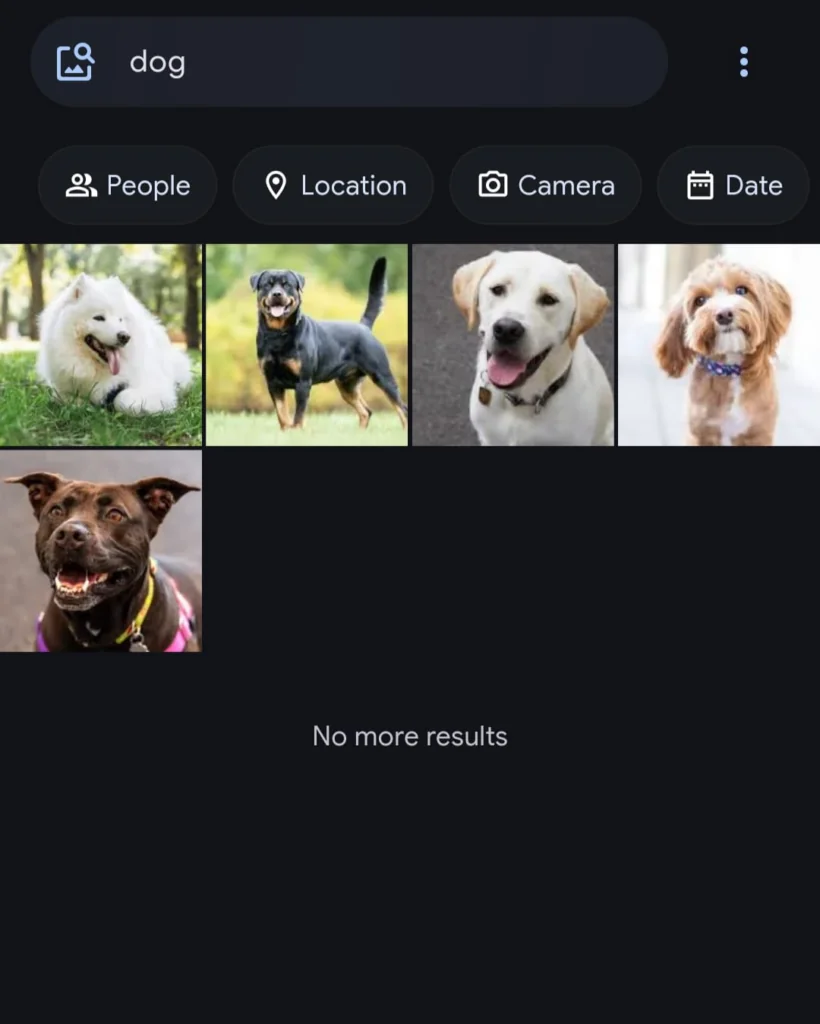
Immich’s CLIP-powered semantic search returning results for “dog” with no manual tagging, running entirely on the RK3588 CPU
Monitoring Background Jobs
You can monitor indexing progress from the Immich administration interface.
Navigate to:
Administration → Jobs
The Jobs page displays separate queues for Smart Search, Face Detection, Facial Recognition, and other background tasks. During the initial indexing phase, these queues may contain hundreds or thousands of pending jobs.
This is normal. As long as the pending counts continue decreasing over time, the machine learning worker is functioning correctly.
If face recognition or semantic search appear incomplete, this page should be your first stop for troubleshooting.
What to Expect During Initial Indexing
The most common mistake new users make is evaluating Immich before indexing has finished.
Face recognition, semantic search, and person clustering all depend on background machine learning jobs. Until those jobs complete, search results may be incomplete and people may not yet appear in the Explore tab.
Large libraries may take many hours to fully index, especially when running CPU-only inference. Start the backup, let the queues drain in the background, and revisit the machine learning features once processing has completed.
The initial wait can be significant, but it only happens once. After the backlog is cleared, ongoing processing of new photos is usually fast enough that indexing completes shortly after upload.
Part 5: Storage and Backup Considerations
Photos are irreplaceable. This section is short but not skippable.
Immich stores two categories of data, and both need to be backed up.
UPLOAD_LOCATION(/mnt/nvme/immich/library) contains your original photos, videos, generated thumbnails, and machine learning assets.DB_DATA_LOCATION(/mnt/nvme/immich/postgres) contains the PostgreSQL database with face recognition embeddings, album definitions, user accounts, shared links, metadata, and the relationships between files and Immich assets.
If you back up only the media files without the database, you will lose face recognition data, albums, named people, shared links, and other metadata that Immich stores separately from the original files. You will still have your photos, but you will not have a complete Immich library.
Back up both directories.
For this deployment, a practical implementation of the 3-2-1 backup strategy looks like:
- One copy on the NVMe drive running Immich.
- One copy on another local device such as a NAS, external drive, or another storage node.
- One copy stored offsite, such as a drive at a family member’s house, another homelab location, or a remote backup target reachable over Tailscale.
The goal is to ensure a single hardware failure, theft, fire, or accidental deletion cannot destroy your only copy of irreplaceable photos.
Immich also provides tools for database backups. Refer to the official Immich backup documentation for the current recommended backup procedure and retention strategy, as backup features and workflows can change between releases.
The simplest way to think about it is this: if the NVMe drive fails and you do not have a backup, your photo library is gone. Unlike containers, databases, or application deployments, family photos and personal memories are often impossible to recreate.
Troubleshooting
The web UI does not load at http://<node-ip>:2283. Verify that all containers are running:
docker-compose ps
Then check the Immich server logs:
docker-compose logs immich-server
If the server is still starting, wait a minute and refresh the page. The first startup can take longer than normal while Immich initializes services and downloads machine learning models.
Face recognition or semantic search is not working. Open:
Administration → Jobs
and check the Smart Search, Face Detection, and Facial Recognition queues. Newly uploaded photos do not become searchable until the corresponding machine learning jobs have finished processing.
If jobs remain stuck for an extended period, restart the machine learning worker:
docker-compose restart immich-machine-learning
Photos upload successfully but do not appear in search results. Uploading and indexing are separate operations. Photos may appear in the timeline immediately while semantic search and face recognition continue processing in the background. Check the Jobs page and allow indexing to complete before evaluating search quality.
Photos uploaded from mobile do not appear in the timeline. Confirm that the mobile app is configured with the correct server URL:
http://<node-ip>:2283
If connecting remotely through Tailscale, use the node’s Tailscale IP instead of its LAN address.
Data is not being stored on NVMe. Verify that the .env file contains the correct storage paths:
UPLOAD_LOCATION=/mnt/nvme/immich/library
DB_DATA_LOCATION=/mnt/nvme/immich/postgres
Both paths should be absolute paths on the NVMe drive. If they point elsewhere, Immich will store data outside the intended storage location.
The database container fails to start. Confirm that the database service is using Immich’s bundled PostgreSQL image rather than a standard PostgreSQL image. Immich requires additional vector search extensions that are not included in the default PostgreSQL container.
What You’ve Built
By the end of this article, you’ve built:
- An Immich deployment running on ARM64 with the Immich server, machine learning worker, PostgreSQL database, and Valkey cache
- All media files, thumbnails, machine learning assets, and database data stored on NVMe at
/mnt/nvme/immich - Automatic photo and video backup from iOS and Android devices
- Face recognition powered by InsightFace and semantic search powered by CLIP, processing new uploads automatically in the background
- Secure remote access through Tailscale without exposing ports to the public internet
- A private photo platform running entirely on hardware you own
Most importantly, you’ve replaced a recurring cloud subscription with infrastructure you control. Your photos remain on your hardware, your search index is generated locally, and your family memories are no longer dependent on a third-party service, pricing change, or account policy.
The result is a photo library that feels remarkably similar to Google Photos while remaining entirely under your control.
Related Articles
Self-Hosted Nextcloud on Turing Pi 2.5: ARM64, NVMe, and SMB Storage The storage foundation used throughout this guide. Nextcloud and Immich work well together, with Nextcloud handling general file sync and Immich focusing on photo management.
Pi-hole + Tailscale on Turing Pi 2.5: Private DNS and Secure Remote Access Enable secure remote access to Immich without opening ports to the public internet.
Turing Pi 2.5 + RK1 Complete Setup Guide The foundation for this entire series, covering node provisioning, networking, storage configuration, and Docker installation.
Local LLM Inference on RK3588 Explore another machine learning workload on the same hardware and see how RK3588 handles local AI inference beyond photo indexing.
Self-Hosted Apps Catalog A curated collection of self-hosted services that run well on Turing Pi 2.5 and RK3588 hardware.
FAQ
Does Immich run on ARM64 and RK3588?
Yes. All Immich container images including immich-server, immich-machine-learning, the bundled PostgreSQL image, and Valkey publish linux/arm64 layers. The machine learning worker runs both InsightFace face recognition and CLIP semantic search on ARM64 without any feature compromise relative to x86 systems.
How does Immich compare to Google Photos?
Immich replicates the core Google Photos experience: automatic phone backup, a chronological timeline, face recognition, semantic search, and a memories view. The difference is that Immich runs on hardware you own, has no storage limits beyond what your NVMe can hold, and your photos remain under your control. The tradeoff is that initial setup requires some effort and you are responsible for backups and maintenance.
How long does Immich face recognition take on ARM64?
The answer depends on library size, image resolution, the number of detected faces, and the hardware available to the machine learning worker. Large libraries containing thousands of photos may take hours or even days to fully process during the initial indexing phase. After the backlog is cleared, new photos are processed incrementally as they are uploaded and typically complete within seconds or minutes.
Do I need a GPU for Immich ML features on ARM64?
No. Face recognition, person clustering, and semantic search all work on CPU-only ARM64 systems. The RK3588’s Cortex-A76 cores are capable of running the full machine learning pipeline without requiring a GPU or NPU. The tradeoff is that initial indexing takes longer compared to hardware-accelerated deployments.
Can Immich and Nextcloud run on the same node?
Yes. Both are containerized and use different ports. They share the underlying NVMe storage while maintaining separate data directories. The 32GB RK1 node has enough memory to run both stacks simultaneously, making them a natural pairing for self-hosted file storage and photo management.
How do I access Immich remotely without opening ports?
Use Tailscale, as covered in the Pi-hole + Tailscale article. Install Tailscale on your Turing Pi node and on your phone, then point the Immich mobile app at your node’s Tailscale IP:
http://<tailscale-ip>:2283
Remote backup works through the encrypted Tailscale tunnel without port forwarding, dynamic DNS, or firewall configuration.