
A working Jetson installation is not automatically a maintainable AI server.
In our complete setup guide, we installed an 8GB NVIDIA Jetson Orin Nano on Turing Pi 2.5, flashed Jetson Linux to a 500GB NVMe drive, connected over Ethernet and SSH, and verified JetPack and CUDA. We then covered the Jetson modules supported by Turing Pi 2.5, explained when local AI makes sense, and broke down the NVIDIA Jetson software stack from Jetson Linux through CUDA, cuDNN, TensorRT, and containers.
The next step is to turn that installed system into a reusable AI infrastructure node. That means preparing a container engine, confirming that containers can access the NVIDIA GPU, giving models and application data predictable locations on the NVMe, making the node reachable as a service from the rest of the Turing Pi system, and establishing a few basic operational checks before real workloads arrive.
This guide does not deploy an LLM, inference server, or vision pipeline. It prepares the foundation those later workloads will share.
This guide continues with the same system used in Article 1:
| Component | Tested configuration |
| Turing Pi | Turing Pi 2.5, hardware revision 2.5.2 |
| Jetson module | Orin Nano 8GB development module, P3767-0005 |
| Turing Pi node | Node 2 |
| Storage | Crucial P310 500GB NVMe |
| Ubuntu userspace | Ubuntu 24.04.4 LTS at the start; 24.04.5 LTS after the tested package update |
| Jetson Linux | R39.2.1 |
| Kernel | 6.8.12-1021-tegra |
| JetPack | 7.2.1-b49 |
| CUDA compiler | CUDA 13.2, V13.2.86 |
| Power mode | 25W |
| Docker Engine | 29.8.0 after setup and update |
The Jetson should already boot from NVMe, have network access, accept SSH connections, and report the expected Jetson Linux, JetPack, and CUDA versions. If those checks are not working yet, complete the setup guide before continuing.
The tested node uses the 25W power mode. Verify the active configuration rather than assuming a mode number, because available mode IDs can differ between Jetson modules and software configurations:
sudo nvpmodel -q --verbose
1. Record the NVIDIA software baseline
The previous article covered how Jetson Linux, JetPack, CUDA, cuDNN, TensorRT, and NVIDIA Container Toolkit fit together. For this guide, the important operational rule is simpler: treat the NVIDIA software stack as a coordinated platform and record what is installed before adding workloads on top of it.
Check the relevant package revisions on the node:
dpkg-query -W -f='${Package}\t${Version}\n' | grep -E \
  '^(nvidia-jetpack|cuda-toolkit|libcudnn|libnvinfer|nvidia-container)[^[:space:]]*[[:space:]]'
The prefix match is intentional. JetPack packages can include versioned names such as cuda-toolkit-13-2 or CUDA-specific cuDNN packages rather than only one unsuffixed package name.
NVIDIA’s JetPack 7.2.1 release information lists CUDA 13.2.1, cuDNN 9.20.0, TensorRT 10.16.2, and NVIDIA Container Toolkit 1.19 for this release. The exact package revisions reported by the node are still worth recording because an installed system may have received package updates after its original flash.
Applications can use this stack directly, but containers will be the default deployment method for the practical builds later in this series.
2. Install Docker and prepare the NVIDIA runtime
Containers keep application dependencies isolated, make services easier to replace, and reduce the chance that two projects will fight over system-wide Python or CUDA libraries.
They are not mandatory. A native installation can still make sense when a project requires direct hardware integration or its supported Jetson instructions call for it. For long-running network services and repeated experiments, however, containers give us a cleaner baseline.
NVIDIA’s current Docker setup guide for Jetson Orin Nano installs the Jetson container integration from the JetPack repositories and Docker using Docker’s official installation script.
Install the Jetson container package and curl:
sudo apt update
sudo apt install -y nvidia-container curl
Before using Docker’s convenience installer, check whether Docker is already installed:
docker --version
If that command already reports a working Docker Engine installation, do not rerun the convenience script just to upgrade it. Docker documents that the script is not designed to upgrade an existing installation and recommends using the configured package repository and APT for later upgrades. Rerunning the script can also rewrite repository configuration.
On a node without Docker Engine, download and run Docker’s official convenience installer:
curl -fsSL https://get.docker.com -o get-docker.sh
sudo sh get-docker.sh
rm get-docker.sh
Make sure Docker is enabled and running:
sudo systemctl enable --now docker
Confirm the ordinary container path before involving the GPU:
sudo docker version
sudo docker run --rm hello-world
The second command should download the ARM64 image, create a container, print Docker’s success message, and remove the container.
Now register the NVIDIA runtime with Docker:
sudo nvidia-ctk runtime configure --runtime=docker
sudo systemctl daemon-reload
sudo systemctl restart docker
NVIDIA documents this nvidia-ctk configuration flow in both the Jetson guide and the NVIDIA Container Toolkit installation guide. It updates Docker’s daemon configuration so that Docker can invoke the NVIDIA runtime when a workload requests GPU access.
Verify that Docker can see the runtime:
sudo docker info --format '{{json .Runtimes}}'
The returned runtime list should include nvidia alongside the normal OCI runtime.
3. Verify GPU access inside a container
A CUDA compiler working on the host does not prove that a container can reach the GPU. This needs its own checkpoint.
Run NVIDIA’s minimal Container Toolkit test:
sudo docker run --rm \
  --runtime=nvidia \
  --gpus all \
  ubuntu:24.04 \
  nvidia-smi
The official NVIDIA Container Toolkit sample workload uses this same pattern. A successful run should print an NVIDIA-SMI table rather than returning No devices were found, nvidia-smi: command not found, or a runtime error.
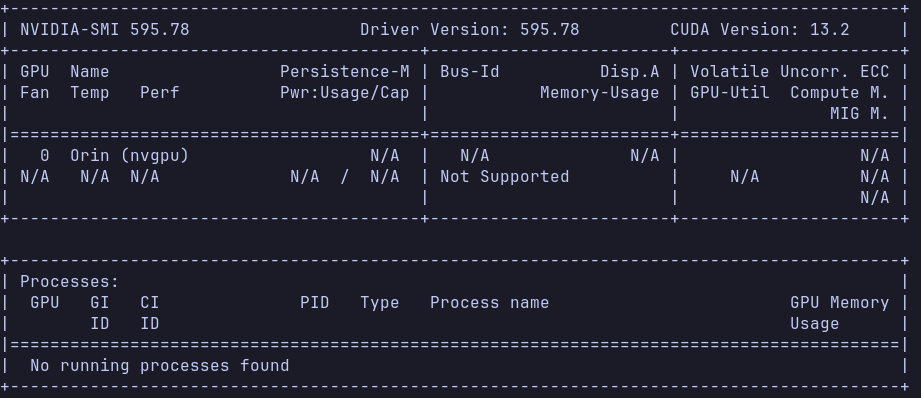
On Jetson, tegrastats remains the more useful tool for detailed platform activity, shared-memory use, temperatures, and frequencies. This container test has a narrower purpose:
Jetson GPU works on the host
        +
Docker works
        +
NVIDIA runtime works
        =
GPU-aware containers can start
We have not deployed a model yet, but the most important container prerequisite is now in place.
4. Give AI workloads a predictable home on the NVMe
The Jetson from Article 1 already runs its root filesystem from the 500GB NVMe. Confirm that before filling the disk with images, models, and caches:
findmnt /
lsblk -o NAME,SIZE,FSTYPE,MOUNTPOINTS,MODEL
df -h /
Our installation uses /dev/nvme0n1p1 as /, so Docker’s default storage under /var/lib/docker is already on the NVMe. There is no need to move Docker’s internal data directory simply to reach the SSD.
Application-managed files still need an intentional layout. Create one root for AI workloads:
sudo install -d -o "$(id -un)" -g "$(id -gn)" -m 0755 \
  /srv/ai/models \
  /srv/ai/containers \
  /srv/ai/data \
  /srv/ai/cache \
  /srv/ai/projects
The resulting structure is:
/srv/ai/
├── models/       Deliberately retained model weights and engines
├── containers/   Compose files and per-service configuration
├── data/         Persistent application state and generated data
├── cache/        Replaceable downloads and runtime caches
└── projects/     Source trees, experiments, and build files
This is a convention, not a JetPack requirement. Its value appears later, when several runtimes each try to create their own hidden cache below a different home directory.
Keep retained model files separate from disposable caches. A TensorRT engine built for a specific model and platform may belong in models. A download that a tool can recreate belongs in cache. Databases, indexes, application configuration, and user-generated output belong in data.
The containers directory is for definitions and configuration that humans should be able to inspect. Docker can continue managing image layers and its own internal volumes under /var/lib/docker.
5. Keep data outside the container filesystem
A container image should contain the application and its dependencies. The container’s writable filesystem is not the right place for model libraries, configuration, or state that must survive replacement.
Docker supports both named volumes and bind mounts. Docker recommends volumes for persistent data managed entirely by Docker. Bind mounts are useful when the files need a known host path that can be inspected, backed up, or shared with another process.
For this series, explicit bind mounts under /srv/ai make the storage layout easier to follow.
Test persistence with two short-lived containers:
mkdir -p /srv/ai/data/persistence-test

sudo docker run --rm \
  --user "$(id -u):$(id -g)" \
  --mount type=bind,src=/srv/ai/data/persistence-test,dst=/data \
  ubuntu:24.04 \
  sh -c 'printf "persistent\n" > /data/check.txt'

sudo docker run --rm \
  --mount type=bind,src=/srv/ai/data/persistence-test,dst=/data,readonly \
  ubuntu:24.04 \
  cat /data/check.txt
The second container should print:
persistent
The first container no longer exists. The file survives because it belongs to the host directory, not the deleted container.
The same pattern will be used later for models and service state. In a future docker run command, a model directory that the runtime only needs to read can be added as a read-only mount:
--mount type=bind,src=/srv/ai/models,dst=/models,readonly
That line is a Docker argument, not a standalone command. Read-only mounts reduce the number of paths an application can accidentally modify.
6. Control model and runtime caches
AI tools often default to hidden directories such as ~/.cache. That is convenient for the first download and confusing after several runtimes have each stored their own copy of a multi-gigabyte model.
When a runtime supports a cache setting, point it into /srv/ai/cache explicitly. Hugging Face tooling, for example, supports HF_HUB_CACHE for downloaded repositories:
mkdir -p /srv/ai/cache/huggingface/hub
A later Docker command can receive that path with arguments such as:
-e HF_HUB_CACHE=/cache/huggingface/hub \
--mount type=bind,src=/srv/ai/cache,dst=/cache
These are Docker arguments rather than a standalone shell command.
The Hugging Face environment-variable reference also documents HF_HOME, but that directory can contain an access token as well as cached files. Do not bake tokens into an image or commit them in a Compose file. Keep credentials separate from replaceable model data.
Not every runtime uses Hugging Face, and not every model needs to be duplicated into both models and cache. The useful rule is to decide whether a file is authoritative or disposable, then give it one predictable home.
Check storage periodically:
du -sh /srv/ai/*
sudo docker system df
df -h /
Do not run broad Docker pruning commands automatically. An unused-looking image or volume may still be part of a service you expect to restore.
7. Treat the Jetson as a network service node
The Jetson is an independent computer inside Turing Pi 2.5. An RK1 cannot use its GPU directly through the backplane. Other nodes will call services running on the Jetson over Ethernet.
Start by checking its identity and address:
hostnamectl --static
ip -br addr
Use a stable, descriptive hostname. If the existing name is still generic, set it once:
sudo hostnamectl set-hostname jetson-ai
Give the Jetson a predictable address by creating a DHCP reservation in the router or DHCP server. This keeps the network configuration centralized and avoids hard-coding an address that another device may later receive. An address remaining unchanged through several reboots does not prove that a reservation exists, so confirm the reservation in the router or DHCP server itself.
To verify service access, start a temporary HTTP container on the Jetson:
sudo docker run -d \
  --name ai-node-network-test \
  -p 8000:80 \
  nginx:alpine
From another machine on the same LAN, such as an RK1 node on the Turing Pi network, run:
curl -I http://<JETSON_IP>:8000
A successful request returns an HTTP status such as:
HTTP/1.1 200 OK
Remove the temporary service after the test:
sudo docker rm -f ai-node-network-test
On the system used to validate this guide, the HTTP test returned HTTP/1.1 200 OK from a second machine on the same LAN. The validating client was not an RK1, so this result confirms LAN reachability to the published service rather than an RK1-specific test result.
Publishing a container port makes it available through the Jetson’s network interfaces. It does not add authentication or encryption. Do not forward experimental AI service ports directly from the router to the public internet.
Before deploying a permanent service, check the firewall or network policy already used on the node and allow only the required port from the local subnet. The exact command depends on the firewall manager and existing network configuration. Do not rewrite remote-access rules blindly during an active SSH session. A production service may also need authentication, TLS, a reverse proxy, or access through a VPN, depending on who should reach it.
At this point the Jetson is no longer just a machine we log into. It is ready to host a specialized service that an RK1 application, automation task, or another client can call over the network.
8. Keep basic logs and health checks available
A reusable AI node also needs a simple way to answer three questions: is the service running, what did it log, and was the Jetson under resource or thermal pressure when something failed?
List running containers and their published ports:
sudo docker ps --format 'table {{.Names}}\t{{.Status}}\t{{.Ports}}'
For a named service, inspect its recent application output:
sudo docker logs --tail 100 <CONTAINER_NAME>
Most containerized services should write operational logs to standard output and standard error so that docker logs can retrieve them. Application data that must survive container replacement still belongs under /srv/ai/data, not in the container’s writable filesystem.
If Docker itself is failing, inspect the service journal:
sudo journalctl -u docker --since '30 minutes ago' --no-pager
For a short view of Jetson resource use, temperatures, clocks, and shared memory activity, sample tegrastats for ten seconds:
timeout 10s tegrastats --interval 1000
These checks are intentionally basic. Later services may add their own metrics, health endpoints, dashboards, or log retention policies, but every deployment should remain diagnosable without first rebuilding the application environment.
9. Update the node without treating JetPack like ordinary Ubuntu
JetPack, Jetson Linux, the NVIDIA driver, CUDA, cuDNN, and TensorRT form a coordinated stack. They should not be treated as freely interchangeable packages.
Before a significant update, record the working state:
mkdir -p /srv/ai/data/system-inventory

cat /etc/nv_tegra_release \
  | tee /srv/ai/data/system-inventory/jetson-linux.txt

uname -a \
  | tee /srv/ai/data/system-inventory/kernel.txt

dpkg-query -W -f='${Package}\t${Version}\n' \
  | grep -E '^(nvidia-jetpack|cuda-toolkit|libcudnn|libnvinfer|nvidia-container|docker-|containerd\.io)[^[:space:]]*[[:space:]]' \
  | tee /srv/ai/data/system-inventory/packages.txt

nvcc --version \
  | tee /srv/ai/data/system-inventory/cuda.txt
For updates within the configured Jetson Linux point-release branch, NVIDIA’s package update documentation recommends reviewing available packages, upgrading, and rebooting:
sudo apt update
apt list --upgradable
sudo apt upgrade
sudo reboot
After rebooting, make the checks explicit:
systemctl --failed
systemctl status nvpmodel.service nvidia-cdi-refresh.service --no-pager
sudo nvpmodel -q --verbose
nvidia-smi

sudo docker run --rm \
  --runtime=nvidia \
  --gpus all \
  ubuntu:24.04 \
  nvidia-smi
For nvidia-cdi-refresh.service, a completed oneshot service may appear inactive after a successful run. The important evidence is that it did not fail, CDI generation succeeded, the host GPU is available, and an accelerated container can still start. A host that merely boots is not ready to return to service if those checks fail.
On the system used for this guide, the package upgrade moved the Ubuntu userspace from 24.04.4 LTS to 24.04.5 LTS while Jetson Linux remained R39.2.1, JetPack remained 7.2.1-b49, and CUDA remained 13.2. Ubuntu’s phased-update mechanism can also defer an otherwise available package, so one deferred package is not by itself evidence of a failed Jetson upgrade.
Known R39.2 boot race: nvpmodel and NVIDIA CDI
During repeated reboot testing on this Jetson Linux R39.2.1 system, nvidia-cdi-refresh.service and nvpmodel.service intermittently raced during boot. The result could be a failed CDI refresh, a failed power-mode service, or unavailable GPU access inside containers even though the machine itself had booted.
A July 2026 NVIDIA Developer Forum report documents the same R39.2 package behavior. The affected report used nvidia-container-toolkit-base 1.19.1-1 and identified this packaged service hash:
798ece5e5812f525a60048ca2852bbfe0914790d294bae7de13b24e008f6c74c
If the post-reboot checks fail, inspect the installed package, service file, and current-boot logs before changing anything:
dpkg-query -W nvidia-container-toolkit-base
sha256sum /etc/systemd/system/nvidia-cdi-refresh.service
systemctl --failed
systemctl status nvpmodel.service nvidia-cdi-refresh.service --no-pager
sudo journalctl -b -u nvpmodel.service -u nvidia-cdi-refresh.service --no-pager
Do not apply a systemd workaround to a healthy node simply because the package version or hash matches. On the affected test system, the stable fix restored the final upstream v1.19.1 CDI readiness and retry behavior and ordered CDI initialization after nvpmodel.service. The linked NVIDIA forum thread documents that workaround and its validation. After applying it to this node, a clean reboot completed with nvpmodel, CDI generation, host GPU access, and container GPU access all succeeding with zero failed units.
This is worth treating as an R39.2 diagnostic because the workaround discussed in the forum is community-tested rather than a replacement Jetson package published by NVIDIA. If NVIDIA ships an updated R39.2 package, prefer the packaged fix over retaining a local systemd override.
Treat a move to another Jetson Linux minor or major release as a planned platform upgrade. Read the release-specific instructions, confirm module support, preserve application data, and test workload compatibility before changing repository branches or reflashing the NVMe.
Update application containers separately from the host. Pin meaningful image versions, keep persistent state outside the container, and replace one service at a time. For native Python projects, use an isolated virtual environment under the project directory instead of filling the system interpreter with unrelated packages.
10. Final readiness check
The node is ready for later AI deployments when each of these checks passes:
| Check | Command or evidence |
| Root filesystem is on NVMe | findmnt / |
| Free storage is known | df -h / |
| Jetson Linux branch is correct | cat /etc/nv_tegra_release |
| JetPack is installed | dpkg-query --show nvidia-jetpack |
| CUDA compiler is available | nvcc --version |
| Docker starts at boot | systemctl is-enabled docker |
| Docker is running | systemctl is-active docker |
| NVIDIA runtime is registered | sudo docker info --format '{{json .Runtimes}}' |
| Host GPU is available | nvidia-smi |
| GPU works inside a container | NVIDIA-SMI container test succeeds |
| AI storage layout exists | `find /srv/ai -maxdepth 1 -type d |
| Persistent data survives replacement | Two-container persistence test succeeds |
| Jetson has a predictable network address | DHCP reservation or equivalent |
| Another LAN machine can reach a published port | HTTP test succeeds from a second machine; an RK1 can be used |
| Container logs are accessible | sudo docker logs --tail 100 <CONTAINER_NAME> |
| Jetson health can be sampled | timeout 10s tegrastats --interval 1000 |
| 25W power mode is applied | sudo nvpmodel -q --verbose |
| No failed systemd units remain | systemctl --failed |
| R39.2 CDI service is healthy after reboot | systemctl status nvidia-cdi-refresh.service --no-pager plus successful GPU-container test |
No serious AI workload is running yet. That is intentional.
Conclusion
The Jetson began as a working Ubuntu and CUDA installation. It is now structured as an AI service node.
Docker provides an isolated deployment layer. NVIDIA Container Toolkit gives those containers controlled access to the Orin GPU. The NVMe has predictable locations for retained models, service definitions, persistent data, caches, and projects. Other Turing Pi nodes can reach services over the network without needing to understand CUDA or TensorRT themselves.
The node is also easier to operate. Container output can be inspected without entering the application filesystem, tegrastats can expose platform pressure when a workload misbehaves, and the working NVIDIA software state can be recorded before significant updates.
This foundation makes later experiments easier to reverse. A runtime can be replaced without deleting its models. A service can be recreated without losing its data. A failed application update does not require rebuilding the Jetson software stack.
The next architectural question is workload placement: what should run on the Jetson, what should remain on RK1 nodes, and how should those roles communicate? With the AI node prepared, the rest of the series can move from platform setup into real services, models, and measured workloads.
Related articles
Continue exploring NVIDIA Jetson on Turing Pi 2.5:
- NVIDIA Jetson Orin Nano Super on Turing Pi 2.5: Complete Setup Guide Install an 8GB Jetson Orin Nano on Turing Pi 2.5, flash Jetson Linux to NVMe, install JetPack, and verify CUDA.
- NVIDIA Jetson on Turing Pi 2.5: Supported Modules and What You Can Build Compare the Jetson modules supported by Turing Pi 2.5 and see where Orin Nano, Orin NX, Xavier NX, and other modules fit.
- Local AI on Turing Pi with NVIDIA Jetson: When Edge AI Makes Sense Learn when local inference makes sense, how it compares with cloud AI, and how a Jetson can fit into a broader Turing Pi system.
- NVIDIA Jetson Software Stack on Turing Pi 2.5: JetPack, CUDA, TensorRT & Containers Explained Understand how Jetson Linux, JetPack, CUDA, cuDNN, TensorRT, containers, frameworks, and applications fit together.
FAQ
Is JetPack the operating system on NVIDIA Jetson?
Not exactly. Jetson Linux provides the Ubuntu-based operating system, NVIDIA drivers, firmware, bootloader, and board support. JetPack is the coordinated SDK and package collection that adds components such as CUDA, cuDNN, TensorRT, development tools, and supporting libraries.
Does a Docker container get access to the Jetson GPU automatically?
No. Docker must be configured with NVIDIA Container Toolkit, and the container must request NVIDIA GPU access unless the administrator has deliberately configured an NVIDIA default runtime. The NVIDIA-SMI container test in this guide verifies the explicit GPU-enabled path.
Do I have to use Docker for AI on Jetson?
No. Native installations remain appropriate for some projects. Containers are useful for this series because they isolate dependencies, make upgrades and removal cleaner, and give later guides a reproducible deployment baseline.
Should model files be stored inside a container image?
Usually not. Large model weights change on a different schedule from the application image and should survive container replacement. Store them on the NVMe and mount them into the container, preferably read-only when the runtime does not need to modify them.
Can an RK1 use the Jetson GPU after this setup?
An RK1 cannot access the GPU directly as if it were a local accelerator. It can call an inference or other AI service hosted by the Jetson over the network. The Jetson performs the accelerated work and returns the result.
Is /srv/ai required by JetPack?
No. It is a simple storage convention used in this series. Another layout can work equally well if models, caches, configuration, and persistent data remain understandable and survive container replacement.