
Jellyfin is easy to deploy on almost any hardware. Building a media server that can actually handle real-world transcoding is much harder.
Direct play tells you very little about a system’s capabilities. If every client already supports the source video, the server is little more than a file server. The real workload begins when a browser needs H.264 instead of HEVC, a remote user requires a lower bitrate, or an HDR movie has to be tone-mapped for an SDR display. At that point, the server has to decode, process, and re-encode video fast enough to keep playback smooth.
This is where the RK3588 becomes interesting. Unlike many ARM systems that rely almost entirely on CPU performance, the RK3588 includes dedicated hardware for video decoding, encoding, image processing, and HDR tone mapping. Jellyfin can offload much of this work to the SoC’s Video Processing Unit (VPU), dramatically reducing CPU usage, provided everything is configured correctly.
Most guides stop after enabling hardware acceleration and declaring success. This guide goes further. We’ll verify that Jellyfin is actually using the RK3588’s media engine, measure how much work is offloaded from the CPU, benchmark direct play and hardware transcoding across multiple workloads, and compare Jellyfin’s hardware support against Plex’s current limitations on the same platform.
By the end, you’ll know exactly what the RK3588 can do as a self-hosted media server, backed by real measurements rather than assumptions.
Part 1: Why Media Servers Are the Ultimate ARM Test
Most self-hosted applications place relatively predictable demands on a server. A database performs disk I/O, Nextcloud serves files, and Home Assistant processes automation events. A media server is different because its workload depends entirely on the capabilities of the client.
When a client supports the original video format, Jellyfin simply streams the file with minimal CPU overhead. When it doesn’t, the server must decode the source video, process it if necessary, and encode it into a format the client can play. That process, known as transcoding, is one of the most computationally demanding workloads found in a typical homelab.
This is where dedicated video hardware becomes important. Instead of performing every operation on the CPU, modern SoCs such as the RK3588 include a Video Processing Unit (VPU) designed specifically for video decode and encode workloads. If Jellyfin is configured correctly, these operations can be offloaded to dedicated hardware, reducing CPU utilization while allowing the system to handle multiple simultaneous streams more efficiently.
The following sections examine how well the RK3588 performs under these workloads, verify that hardware acceleration is functioning correctly, and measure the practical impact on CPU usage.
Part 2: Understanding the RK3588 Video Engine
The RK3588 uses Rockchip’s Media Process Platform (MPP) to provide hardware-accelerated video processing. During transcoding, two components are particularly important. The Video Processing Unit (VPU) performs hardware video decoding and encoding, while the Rockchip Graphics Accelerator (RGA) handles tasks such as image scaling, format conversion, and subtitle rendering. Together, they allow Jellyfin to offload much of the transcoding workload from the CPU.
Hardware decode and hardware encode are independent capabilities. A codec supported for hardware decoding is not necessarily supported for hardware encoding, so it’s important to consider both when evaluating transcoding performance.
One capability worth highlighting is H.264 High 10 Profile decoding. Many Intel and NVIDIA GPUs cannot decode this format in hardware, which often forces software transcoding for compatible clients. The RK3588 supports High 10 hardware decoding, making it particularly useful for anime libraries and other media encoded in this format.
AV1 hardware decoding is another notable feature. While Jellyfin currently transcodes to H.264 or HEVC rather than AV1, native AV1 decode support allows the RK3588 to efficiently play an increasing number of modern media files without relying on software decoding.
Official documentation describes the capabilities of the RK3588 media engine, but real-world performance depends on factors such as codec, bitrate, resolution, HDR tone mapping, and the number of concurrent streams. The benchmark sections later in this guide evaluate how these capabilities translate into practical Jellyfin workloads.
The Jellyfin docs state the RK3588 VPU can theoretically sustain 1080p@480fps or 4K@120fps encoding. Part 5 benchmarks single-stream direct play, software, and hardware transcoding against each other on this hardware. For benchmarks and detailed RK1 performance data, see Turing Pi’s RK1 benchmark page.
Part 3: Deploy Jellyfin
Deploying Jellyfin on the RK3588 is straightforward, but hardware transcoding requires a few additional configuration steps. Before you begin, make sure your RK1 is running a Rockchip BSP kernel. Jellyfin currently supports RKMPP hardware acceleration on BSP 5.10 LTS and BSP 6.1 LTS kernels. Mainline Linux kernels are not supported.
Verify your kernel version:
uname -r
You should see a Rockchip BSP kernel similar to:
5.10.xxx-rockchip
or
6.1.xxx-rockchip
Docker Compose
The official jellyfin/jellyfin image includes a Jellyfin-optimized FFmpeg build with native RKMPP and RGA support, so no custom Docker image was required during testing.
Create a new docker-compose.yaml file:
mkdir jellyfin
cd jellyfin
nano docker-compose.yaml
Then paste the following configuration:
services:
  jellyfin:
    image: jellyfin/jellyfin
    container_name: jellyfin
    network_mode: host

    security_opt:
      - apparmor=unconfined
      - systempaths=unconfined

    volumes:
      - /path/to/jellyfin/config:/config   # change to your actual config storage path
      - /path/to/jellyfin/cache:/cache     # change to your actual cache/transcode storage path, ideally NVMe
      - /path/to/media:/media:ro           # change to your actual media library path

    devices:
      - /dev/dri:/dev/dri
      - /dev/dma_heap:/dev/dma_heap
      - /dev/mpp_service:/dev/mpp_service
      - /dev/rga:/dev/rga
      - /dev/mali0:/dev/mali0

    restart: unless-stopped
Start the container:
docker compose up -d
During testing, this configuration worked without modification on Ubuntu 22.04.5 LTS using the Rockchip 5.10.160 BSP kernel and the official jellyfin/jellyfin Docker image.
Note: If your system uses the legacy docker-compose package instead of the Docker Compose plugin, replace docker compose with docker-compose throughout this guide.
Configure Hardware Acceleration
Once the container is running, open a web browser and navigate to:
http://<node-ip>:8096
Replace <node-ip> with the IP address of your RK1 node. If you don’t know the address, run:
hostname -I
Complete Jellyfin’s initial setup wizard. After signing in, navigate to:
Dashboard → Playback → Transcoding
Select Rockchip RKMPP as the hardware acceleration method, save the configuration, and restart the Jellyfin container for the changes to take effect.
docker compose restart jellyfin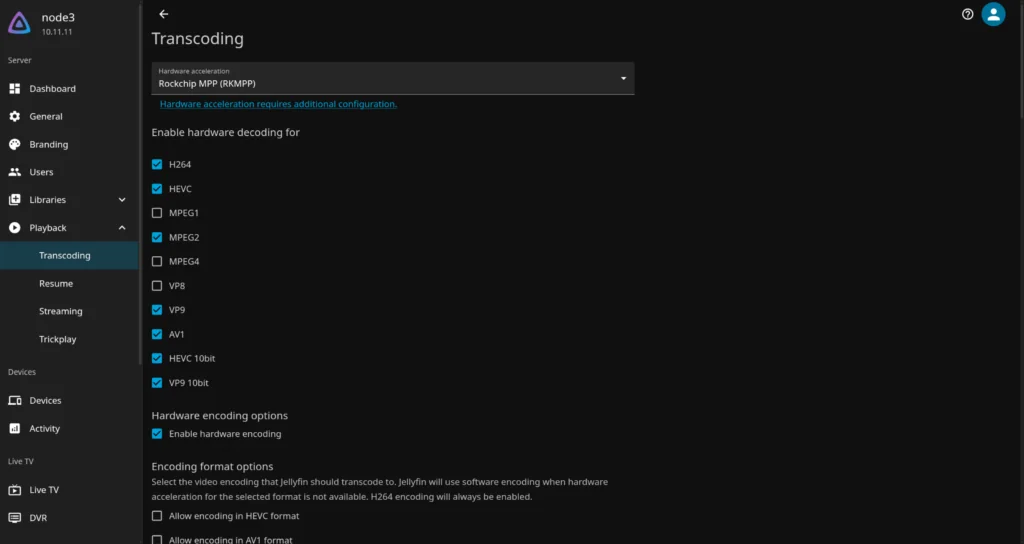
Verify Device Availability
Before benchmarking hardware transcoding, confirm that the required device nodes are available on the host:
ls -l /dev | grep -E "mpp|rga|dri|dma_heap|mali"
On Turing Pi RK1 running Ubuntu 22.04.5 LTS with the 5.10.160 Rockchip BSP kernel, the following device nodes were present and successfully passed through to the Jellyfin container.
| Device | Purpose |
/dev/mpp_service | Hardware video decoding and encoding |
/dev/rga | Image scaling, color conversion, and subtitle rendering |
/dev/dri | Direct Rendering Manager interface |
/dev/dma_heap | Shared memory allocation for multimedia pipelines |
/dev/mali0 | OpenCL acceleration for HDR tone mapping |
We also verified that all five device nodes were accessible inside the Jellyfin container, confirming that the Docker configuration correctly exposed the RK3588 hardware acceleration interfaces.
Note: HDR tone mapping requires the ARM Mali OpenCL runtime (libmali) to be installed on the host operating system.
Part 4: Verify Hardware Acceleration
Selecting Rockchip RKMPP in the Jellyfin settings does not guarantee that hardware acceleration is active. Missing device mappings, incorrect permissions, or configuration issues can cause Jellyfin to silently fall back to software transcoding. Before benchmarking performance, verify that the RK3588 VPU is actually handling the workload.
Verify Available Hardware Accelerators
First, confirm that the official Jellyfin FFmpeg build includes RKMPP support:
docker exec -it jellyfin /usr/lib/jellyfin-ffmpeg/ffmpeg -hwaccels
During our testing on the RK1, the following hardware acceleration backends were available:
Hardware acceleration methods:
cuda
drm
opencl
rkmpp
The FFmpeg build was also compiled with both --enable-rkmpp and --enable-rkrga, confirming that the official Jellyfin image provides native RK3588 hardware acceleration support without requiring a custom FFmpeg build.
Check Playback Information
Start playing a video and force a transcode by selecting a lower playback quality in the client.
While the video is playing, click the gear (⚙️) icon in the playback controls and select Playback Info.
Verify that:
- Play method shows Transcoding
- Video codec reflects the transcoded output (for example, H.264)
- Reason for transcoding matches the playback quality change or client limitation
- Transcoding framerate remains comfortably above the video’s playback framerate
For example, during testing the RK1 sustained hardware transcoding at up to 311 fps (5.18× real-time) for a 4K HEVC Main10 source transcoded to H.264, indicating the transcoder was keeping well ahead of playback.
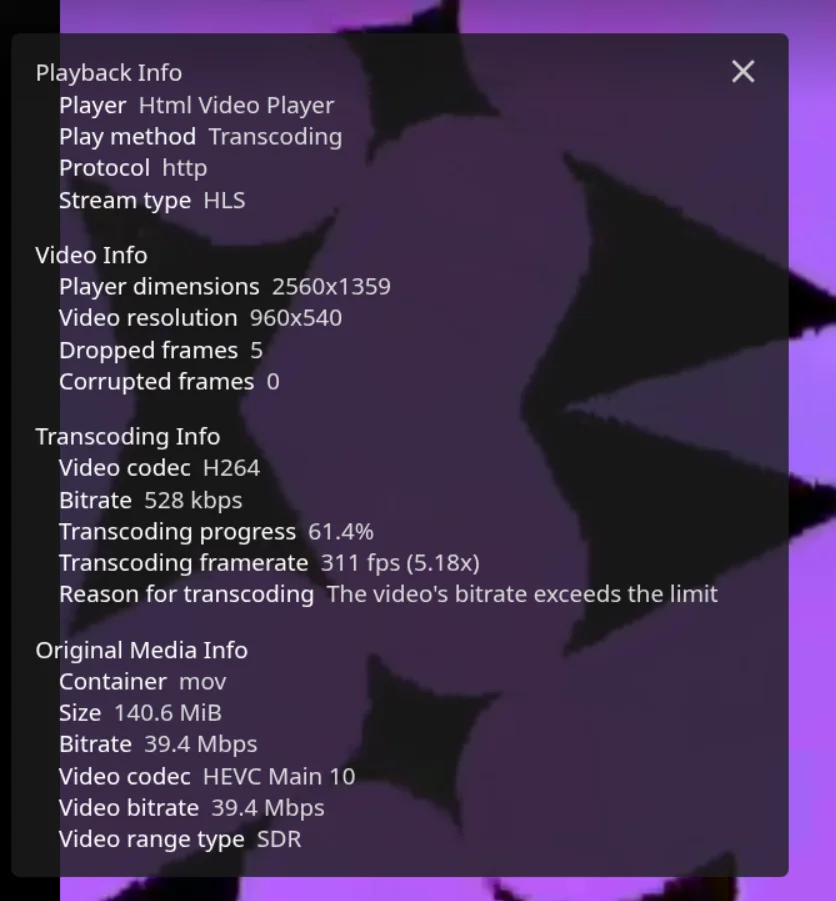
Playback Info confirms that Jellyfin is actively transcoding the stream. The following verification methods confirm that the RK3588 VPU is performing the hardware acceleration rather than the CPU.
Inspect FFmpeg Logs
Jellyfin writes a dedicated FFmpeg log for every transcode. Inspect the most recent log:
cat "$(ls -t /mnt/nvme/jellyfin/config/log/FFmpeg.Transcode-*.log | head -1)"
If your Jellyfin configuration directory is stored elsewhere, replace the path accordingly.
Verify that the generated FFmpeg command contains the Rockchip hardware acceleration parameters:
-init_hw_device rkmpp=rk
-hwaccel rkmpp
-hwaccel_output_format drm_prime
You should also see Rockchip hardware codecs and filters in use, for example:
-codec:v h264_rkmpp
-afbc rga
-vf vpp_rkrga=...
The FFmpeg log should also indicate that both the decoder and encoder are using RKMPP. For example:
Stream mapping:
  Stream #0:0 -> #0:0 (h264 (h264_rkmpp) -> h264 (h264_rkmpp))
and the output stream should report the RKMPP encoder:
encoder: Lavc... h264_rkmpp
These entries confirm that Jellyfin is using the RK3588 hardware acceleration pipeline for transcoding rather than falling back to software codecs.
Part 5: Benchmark: Direct Play vs. Software vs. Hardware Transcoding
All benchmarks were performed on a single RK1 (RK3588) 32GB node running Ubuntu Server 22.04 LTS with Jellyfin in Docker. Each test was repeated three times using the same source file and playback settings, with CPU utilization and transcoding performance averaged across the runs.
Test Media
| File | Codec | Resolution | Bit Depth | Bitrate |
| Test Jellyfin 1080p AVC 3M | H.264 | 1920×1080 | 8-bit | ~3 Mbps |
| Test Jellyfin 1080p HEVC HDR10 3M | HEVC Main10 HDR10 | 1920×1080 | 10-bit | ~3 Mbps |
| Test Jellyfin 4K HEVC 10bit 40M | HEVC Main10 | 3840×2160 | 10-bit | ~40 Mbps |
| Test Jellyfin 4K AV1 10bit 50M | AV1 Main | 3840×2160 | 10-bit | ~50 Mbps |
Direct Play
These files were played without transcoding on a client capable of direct playback.
| Scenario | CPU % |
| 1080p H.264 Direct Play | ~1–2% |
| 4K HEVC Direct Play | ~2% |
Software Transcoding (RKMPP Disabled)
RKMPP hardware acceleration was disabled in Jellyfin, and the same four playback scenarios were repeated under identical conditions. CPU utilization was measured using pidstat, while transcoding throughput and playback speed were recorded from Jellyfin’s Playback Info during steady-state operation.
pidstat reports CPU usage across all logical CPU cores rather than as a percentage of the entire system. On the RK1’s 8-core RK3588, a value of 100% represents one fully utilized CPU core, while 800% represents all eight cores at full utilization. For example, the 727% observed during software transcoding indicates that the workload consumed roughly 7.3 out of 8 CPU cores.
| Source | Output | CPU % | Transcoding FPS | Playback Speed |
| 1080p H.264 | 540p H.264 | 623% | 163 FPS | 2.72× |
| 1080p HEVC HDR10 | 540p H.264 | 558% | 60 FPS | 1.00× |
| 4K HEVC Main10 | 540p H.264 | 727% | 39 FPS | 0.65× |
| 4K AV1 Main10 | 540p H.264 | 733% | 37 FPS | 0.62× |
Hardware Transcoding (RKMPP Enabled)
The 1080p test clips used in this guide are approximately 30 seconds long. During hardware-accelerated transcoding, the RK3588 completed these workloads quickly enough that Jellyfin did not consistently report a stable transcoding framerate. The corresponding FPS fields are therefore left blank rather than reporting inconsistent values.
| Source | Output | CPU % | FPS / Playback |
| 1080p H.264 | 540p H.264 | 2–4% | — |
| 4K HEVC Main10 | 540p H.264 | 3–8% | 306 fps (5.10×) |
| 1080p HEVC Main10 HDR10 | 540p H.264 | 2–3% | — |
| 4K AV1 Main | 540p H.264 | 4–8% | 306 fps (5.10×) |
Summary
| Metric | Software | Hardware |
| 1080p H.264 → 540p H.264 CPU | 623% | 2–4% |
| 4K HEVC Main10 → 540p H.264 CPU | 727% | 3–8% |
| 4K AV1 Main → 540p H.264 CPU | 733% | 4–8% |
Across all tested media, enabling RKMPP hardware acceleration reduced CPU utilization dramatically while maintaining smooth real-time playback for supported codecs. During hardware transcoding, the RK3588’s dedicated VPU handled video decoding and encoding, leaving the CPU responsible primarily for container management, filtering, and stream delivery. In contrast, software transcoding relied entirely on the CPU and consistently drove utilization above 600% for the same playback scenarios.
This benchmark demonstrates the practical advantage of enabling RKMPP in Jellyfin: substantially lower CPU usage, support for demanding 4K HEVC and AV1 media, and significantly more headroom for running additional services on the same RK1 node.
Part 6: Plex on RK3588
Plex handles the RK3588 differently than Jellyfin does, and the difference comes down to official support rather than raw capability.
Plex Media Server installs and runs on the RK3588 without issue for media management, library scanning, and direct play. The problem shows up specifically with transcoding.
Hardware transcoding requires Plex Pass, but that’s not the blocker here. Plex Pass unlocks the hardware transcoding feature. It does not add support for hardware Plex hasn’t built drivers for. As of this writing, Plex’s officially supported hardware acceleration platforms are:
- Intel Quick Sync Video
- NVIDIA NVENC/NVDEC
- AMD GPUs (via VCN)
Rockchip’s RKMPP is not on that list. This is a real gap, not a configuration issue on your end. Jellyfin added native RKMPP support back in early 2024, giving it a working hardware pipeline for the RK3588’s VPU. Plex has an open feature request from users asking for the same thing, but there’s no indication as of mid-2026 that Rockchip support has shipped.
What this means in practice: without RKMPP support, Plex has no path to the RK3588’s dedicated video decode and encode hardware. Any transcode Plex performs on this hardware falls back to software, meaning it runs entirely on the CPU cores instead of the VPU. Expect CPU utilization comparable to software transcoding on any other unsupported platform: usable for a stream or two, but nowhere near the headroom Jellyfin gets from its RKMPP pipeline.
There are community forks of FFmpeg, like nyanmisaka’s ffmpeg-rockchip, that expose RKMPP encoding and decoding at the command line. Some users have experimented with swapping these into Plex manually. This isn’t supported by Plex, isn’t guaranteed to survive server updates, and isn’t something to rely on for a production homelab setup. Treat it as a curiosity rather than a real option.
Bottom line: if hardware transcoding on the RK1 is a priority, Jellyfin is the clear choice covered throughout this article. Plex remains a solid option for direct play and library management, but plan on CPU-bound software transcoding if you go that route.
Part 7: Which Clients Actually Need Transcoding?
Understanding when a client triggers a transcode is as important as knowing what the hardware can do. These are the common client behaviors with a standard Jellyfin library of H.264 and HEVC content.
Android TV / Fire TV. Native HEVC decode in hardware on most devices from 2018+. H.264 always plays directly. Bitrate and resolution caps vary by device. High-bitrate 4K may trigger a transcode even if the codec is compatible. Generally a good direct-play target.
Apple TV (4K, 2nd gen+). Supports H.264 and HEVC natively, including 10-bit HDR. AV1 hardware decode on Apple TV 4K 3rd gen. One of the strongest direct-play clients available; transcoding is rare unless audio remux is needed.
Web browser (Chrome, Firefox). The most transcode-heavy client. Browsers do not support HEVC in most configurations (Safari on macOS is an exception). Any HEVC source triggers a hardware transcode to H.264. This is the most common scenario that exercises the VPU in a typical household.
Android phone/tablet. Native H.264 and often HEVC support, but behavior varies significantly by manufacturer and Android version. Expect occasional transcodes for high-bitrate content or unusual profiles.
iPhone (Safari). Supports H.264 and HEVC natively. Generally direct-plays well-encoded content. Audio codecs (TrueHD, DTS-MA) require remux or transcode.
LG TVs (webOS). H.264 and HEVC hardware decode, but HEVC support varies by model year and TV profile. Older LG TVs may transcode 4K HEVC where newer ones direct-play. AV1 not supported on most models.
Samsung TVs (Tizen). Similar to LG: H.264 reliably direct-plays; HEVC support depends on model year. Samsung’s Plex app has historically been more transcode-heavy than the Jellyfin app.
Chromecast (with Google TV, 2020+). H.264 and HEVC, including 4K HDR. Generally a good direct-play target. Older Chromecast (3rd gen and earlier) caps at 1080p H.264: any 4K content transcodes.
The practical summary: a Jellyfin install serving browsers and mixed-generation devices will generate a steady stream of HEVC-to-H.264 hardware transcodes. A library serving only Apple TV and Android TV clients may see near-zero transcoding.
Troubleshooting
Hardware acceleration is enabled, but transcoding still uses the CPU.
Verify that all required Rockchip device nodes are passed through to the Jellyfin container. Missing device mappings prevent the RK3588 VPU from initializing, causing Jellyfin to silently fall back to software transcoding. Also confirm that hardware acceleration is enabled in Jellyfin’s Playback settings and check the FFmpeg transcode logs for any RKMPP initialization errors.
Transcoding fails with Failed to init MPP context: -1.
This typically points to a device passthrough problem rather than a missing host library. Since the official jellyfin/jellyfin image already bundles RKMPP and RGA support, double check that every required device node (/dev/mpp_service, /dev/rga, /dev/dri, /dev/dma_heap) is actually present on the host and correctly listed under devices: in your compose file. A mismatch here is the most common cause of this error.
Playback buffers or stutters during hardware transcoding.
First verify that the playback method is Transcoding and that hardware acceleration is active. If hardware transcoding is working but playback still buffers, the bottleneck is typically storage or network throughput rather than CPU performance. Hosting both the media library and Jellyfin’s transcode directory on an NVMe SSD significantly improves responsiveness.
HDR tone mapping is not working.
HDR to SDR tone mapping requires a compatible Mali OpenCL runtime in addition to RKMPP. If OpenCL is unavailable, Jellyfin can still perform hardware transcoding, but HDR tone mapping may fail or produce incorrect colors. Verify that the required Mali userspace libraries are installed and that the Mali device is exposed to the container.
Plex hardware acceleration is unavailable.
This is expected on current Plex releases. Plex does not officially support Rockchip’s RKMPP hardware acceleration, so transcoding falls back to software. Community workarounds exist but are unofficial and not something to rely on for a production setup.
What You’ve Built
By the end of this article, you’ve built:
- A Jellyfin server running in Docker on an ARM64 RK3588 node, with the official
jellyfin/jellyfinimage and no custom build required - Full RKMPP hardware acceleration, with the RK3588’s VPU handling video decode and encode, and the RGA handling scaling, format conversion, and subtitle rendering
- Verified device passthrough for
mpp_service,rga,dri,dma_heap, andmali0, confirmed both on the host and inside the container - HDR to SDR tone mapping through the Mali OpenCL runtime, so HDR10 content plays correctly on SDR clients without falling back to software
- Confirmed hardware transcoding through Playback Info and FFmpeg logs, not just a toggle in the settings menu
- Benchmarked CPU usage across direct play, software transcoding, and hardware transcoding, with RKMPP cutting CPU load from over 600% down to single digits on the same 4K HEVC and AV1 sources
- A clear picture of where Jellyfin’s RK3588 support stands against Plex, and which of your household’s clients will actually trigger a transcode
Most importantly, you’ve turned an ARM node that most guides write off as “too weak for real transcoding” into a media server that handles 4K HEVC and AV1 with CPU usage low enough to run other services alongside it. The RK3588’s VPU is doing the work a much more expensive x86 box would otherwise need a dedicated GPU for.
The result is a Jellyfin deployment that transcodes 4K HDR content in real time, on a compute module a fraction of the cost and power draw of a comparable Intel or NVIDIA-based setup.
Related Articles
- Turing Pi 2.5 RK1 Complete Setup Guide: Start here if you haven’t done initial setup and k3s configuration yet.
- Turing Pi 2.5 Build Guide: Hardware assembly, node layout decisions, and what to think about before first boot.
- Self-Hosted Apps on Turing Pi 2.5: The broader self-hosted service stack this article extends, including service architecture decisions.
- Pi-hole and Tailscale on Turing Pi: Add DNS filtering and a mesh VPN to make remote Jellyfin access viable without exposing ports.
- Immich on Turing Pi: Self-hosted photo management on the same hardware, useful if you want to understand what the RK3588’s NPU can handle alongside media tasks.
- k3s vs k0s vs MicroK8s vs RKE2 on ARM: If you’re moving Jellyfin into a Kubernetes deployment, this comparison covers the orchestration options.
- ARM Compute Module Buyer’s Guide 2026: How the RK1 compares to other compute module options if you’re evaluating upgrades or additional nodes.
FAQ
Does the RK3588 support Jellyfin hardware transcoding officially?
Yes, RKMPP hardware acceleration is officially supported and documented in Jellyfin 10.9 and later. It is not a community patch or third-party image. The official jellyfin/jellyfin Docker image includes all required user-mode VPU drivers. The one hard requirement is a BSP Linux kernel (5.10 or 6.1 LTS): mainline Linux is explicitly not supported as of current Jellyfin documentation.
Does the official Jellyfin ARM64 Docker image work, or do I need a community build?
The standard jellyfin/jellyfin image works without modification. The Jellyfin project ships all necessary Rockchip MPP, RGA, and OpenCL user-mode libraries in the official image. What you do need to add on the host side is the libmali ARM Mali OpenCL runtime for HDR tone mapping, since this must match the host kernel’s GPU firmware version.
Jellyfin vs. Plex on ARM, which is better supported?
For hardware transcoding on RK3588, Jellyfin is in a materially different position from Plex. Jellyfin has official RKMPP support since version 10.9 with documented configuration steps. Plex has no official Rockchip hardware transcoding support as of this writing, and a community feature request has been open since early 2024 with no official response. If hardware transcoding matters to your setup, Jellyfin is currently the only documented path on this hardware.
Will this work with 8GB of RAM instead of 32GB?
Transcoding is primarily limited by VPU throughput and CPU, not RAM. Jellyfin’s idle RAM footprint is modest (roughly 300 to 500MB), and a single 4K transcode adds a relatively small amount on top of that. The 8GB RK1 configuration should be sufficient for the transcoding workloads tested here. Where 8GB becomes a constraint is if this node is also running other services that compete for memory, so account for their resident footprint in total.
Which clients will actually trigger hardware transcoding?
Web browsers (Chrome, Firefox) reliably trigger HEVC-to-H.264 transcodes since they cannot decode HEVC natively on most platforms. Android and iOS apps typically direct-play H.264 and often HEVC, but may transcode for high-bitrate 4K or incompatible audio tracks. Apple TV and modern Android TV hardware are the strongest direct-play clients and will rarely trigger the VPU. See Part 7 for per-client detail.