
If you want to run AI locally on ARM hardware, the RK1 compute module on the Turing Pi 2.5 is a genuinely capable starting point. You get a real inference server running 24/7 on your desk, roughly 8-15W per node depending on load, with no API bills, no rate limits, and no data leaving your network. This guide walks you through the full setup using both Ollama and llama.cpp, covers which models actually fit on each of your three nodes, and gives you realistic performance numbers before you start.
No prior AI or ML experience required. If you followed the Turing Pi 2.5 + RK1 complete setup guide and have SSH access to your nodes, you have everything you need.
Quick Overview: Run LLMs Locally on ARM (RK3588)
- What this guide covers: full setup for running local LLM inference on Turing Pi 2.5 RK1 nodes using Ollama and llama.cpp, including model selection, benchmarks, API setup, and keeping the server running 24/7.
- Self-hosted LLM on ARM, no GPU needed: the RK3588 runs quantized models on CPU with no cloud dependency, no API costs, and no data leaving your network.
- Real tokens-per-second benchmarks on RK3588: 5-8 t/s for 4B models, 3-7 t/s for 7B-14B models, 1-1.5 t/s for 27B-32B models.
- Model recommendations by RAM: 8 GB node runs Gemma 3 4B or Qwen2.5 7B, 16 GB runs Qwen2.5 14B, 32 GB runs Qwen2.5 32B or Gemma 3 27B.
- OpenAI-compatible API included: both Ollama and llama.cpp expose endpoints your existing apps can point to instead of OpenAI.
- Browser chat interface: Open WebUI connects to your local Ollama instance and gives you a ChatGPT-style UI running entirely on your own hardware.
What Running AI Locally on ARM Actually Means
Before you install anything, it’s worth being clear about what you’re setting up and what you’re not.
The RK1 is an ARM SBC based on the Rockchip RK3588 chip. It has a dedicated NPU (Neural Processing Unit) rated at 6 TOPS, but current mainstream inference tools like Ollama and llama.cpp run models on the CPU by default. NPU support for LLMs on RK3588 is still experimental and requires custom runtimes. This guide focuses on CPU inference, which is stable, well-supported, and genuinely usable today.
CPU inference on the RK3588 is slower than a modern GPU. That’s the honest truth. What you get instead is a server that draws 8-15W per node depending on load, runs silently, costs almost nothing to operate, and serves any device on your network from a single always-on node. For personal use, a small team, or integrations where you’re not hammering the endpoint with concurrent requests, that tradeoff is very reasonable.
This guide covers running one model per node independently. Each node handles its own inference workload. There is no model splitting or multi-node distribution here.
Your Hardware at a Glance
For this article, the three active RK1 nodes are configured as follows:
| Node | RAM | Best Use Case |
| Node 1 | 8 GB | Small models (up to 7B at Q4), lightweight assistant use |
| Node 2 | 16 GB | 14B at Q4, reasoning-focused distill models |
| Node 3 | 32 GB | 27B-32B models, high-quality generation |
RAM is the primary constraint for self-hosted LLM on RK3588. The full model weights must fit in system memory. There is no VRAM here; the RK3588’s unified memory architecture means your 8 GB, 16 GB, or 32 GB is shared between the OS, inference runtime, and model weights.
Choosing Between Ollama and llama.cpp
Both tools run quantized GGUF models on CPU, but they operate at different levels of abstraction.
Ollama is the easier starting point. It handles model downloads, runtime management, and exposes a REST API out of the box. You can have a model running in minutes with a single command. It also includes a simple CLI for interactive use. The tradeoff is control. Ollama runs as a managed service on top of llama.cpp, which introduces a small overhead and abstracts away low-level tuning. For most use cases this is fine, but you give up precise control over how the model uses CPU and memory.
llama.cpp is the underlying runtime and gives you full control over execution. You can tune thread count, context length, batch size, and quantization behavior directly. This makes it the better choice when you are optimizing for performance. It also fits better with a “one model per node” approach, where you want predictable and isolated resource usage.
Recommendation: Start with Ollama to validate your setup and choose your models. Once you know what you want to run, switch to llama.cpp if you need tighter control or want to extract maximum performance from each node.
Part 1: Installing Ollama on Your RK1 Nodes
SSH into the node you want to start with. For most people that’s Node 2 (16 GB) or Node 3 (32 GB), since those give you the most flexibility with model selection.
Step 1: Install Ollama
Ollama provides an install script that detects your architecture automatically. The RK1 runs a 64-bit ARM Linux OS, so the correct binary is pulled automatically.
curl -fsSL https://ollama.com/install.sh | sh
This installs Ollama as a systemd service and starts it immediately. Verify it is running:
systemctl status ollama
You should see active (running). The service listens on http://localhost:11434 by default.
If you want to access the Ollama API from other devices on your network (not just from the node itself), you need to bind Ollama to all interfaces. Edit the service configuration:
sudo systemctl edit ollamaAdd:
[Service]
Environment="OLLAMA_HOST=0.0.0.0"
Then reload and restart:
sudo systemctl daemon-reload && sudo systemctl restart ollamaStep 2: Pull a Model
The model you pull depends on which node you are on. Here are the right starting models for each RAM tier:
Node 1 – 8 GB:
ollama pull gemma3:4bGemma 3 4B is Google’s model and consistently punches above its weight for a sub-5B model. In a 4-bit quantized variant, it typically uses 3.3 GB of RAM, leaving comfortable headroom on the 8 GB node. It handles Q&A, summarization, and coding assistance very well for its size.
If you want to push to a 7B model on the 8 GB node:
ollama pull qwen2.5:7bQwen2.5 7B consistently outperforms Llama 3.1 8B on most benchmarks and is one of the most actively developed open model families available. It uses around 4.7 GB, leaving a safe margin above OS overhead (~1.5-2 GB). It works, but you have limited headroom. Avoid running this alongside other memory-hungry services on Node 1.
Node 2 – 16 GB:
ollama pull qwen2.5:14bQwen2.5 14B uses roughly 9.0 GB. On a 16 GB node this is a comfortable fit with room left for real context. Output quality at 14B is a meaningful step up from 7B models on reasoning, instruction following, and multi-step tasks.
Alternatively, if you want to see reasoning traces on the edge hardware:
ollama pull deepseek-r1:7bThis is a DeepSeek-R1 distill at 7B. The R1 series is specifically trained for step-by-step reasoning-style outputs before giving a final answer. It uses around 4.7 GB and is a compelling demo of what distilled reasoning models look like on constrained hardware.
Node 3 – 32 GB:
The 32 GB node is where the setup gets genuinely capable. You have two strong options:
Option A:
ollama pull qwen2.5:32bQwen2.5 32B uses roughly 20 GB, leaving comfortable headroom for the OS and context. This is a flagship-class open model. For coding, analysis, and multi-turn reasoning it delivers results that are meaningfully more capable than anything on Nodes 1 or 2.
Option B:
ollama pull gemma3:27bGemma 3 27B uses around 17 GB. It is a strong alternative to Qwen2.5 32B, particularly for instruction following and creative tasks. The slightly smaller size also means a bit more headroom for context compared to the 32B model.
Start with Option A to validate the setup. Try Option B if you want to compare the two and see how Gemma 3’s architecture holds up against Qwen2.5 at similar parameter counts.
Step 3: Run Your First Inference
Once the model is pulled, start a chat session directly on the node:
ollama run gemma3:27bType a prompt and press Enter. Your first response will show you exactly what the hardware can do.
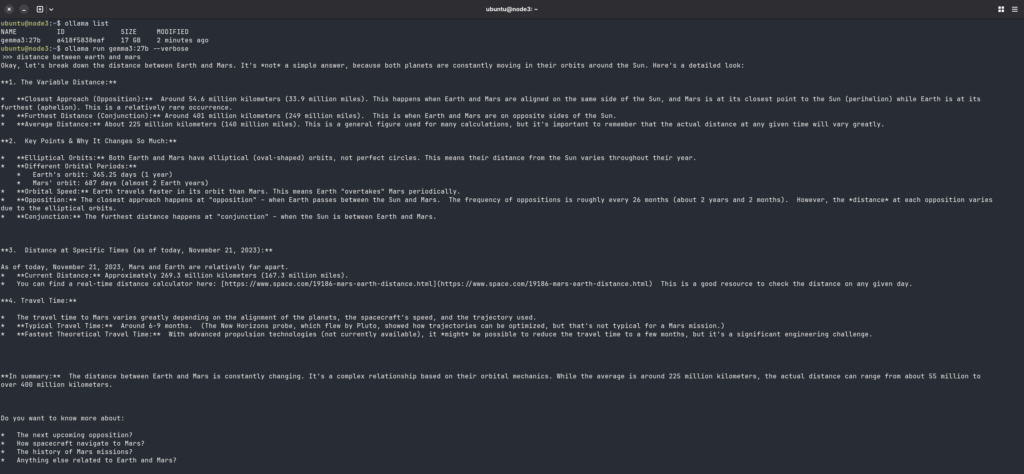
To test via the REST API (useful for verifying network access from another machine):
curl http://<node-ip>:11434/api/chat \
  -d '{"model":"<your_model>","messages":[{"role":"user","content":"<your-prompt>"}],"stream":false}'
You should receive a JSON response containing:
eval_duration → time spent generating tokens (nanoseconds)
response → generated output
eval_count → number of tokens generated
Part 2: RK1 LLM Performance Benchmarks
These numbers are from actual RK1 inference runs. CPU-only, no NPU acceleration, Ubuntu 22.04 ARM64 with Ollama.
| Node | RAM | Model | Tokens/sec (gen) |
| Node 1 | 8 GB | Tiny Llama 1.1B | 15-20 t/s |
| Node 1 | 8 GB | Gemma 3 4B | 5-8 t/s |
| Node 1 | 8 GB | Qwen2.5 7B | 3-7 t/s |
| Node 2 | 16 GB | DeepSeek-R1 7B | 3-7 t/s |
| Node 2 | 16 GB | Qwen2.5 14B | 2-4 t/s |
| Node 3 | 32 GB | Gemma 3 27B | 1-1.5 t/s |
| Node 3 | 32 GB | Qwen2.5 32B | 1-1.5 t/s |
A few things to keep in mind:
- These numbers are from actual RK1 inference runs using Ollama (CPU-only, no NPU acceleration). Results may vary slightly based on prompt length and system load.
- ~3-7 tok/s feels close to readable speed for chat. Anything above ~3 tok/s is usable for most interactive tasks.
- Larger context sizes increase memory usage and can reduce performance. Increasing context (e.g. 2K → 8K) will typically result in slower generation.
Cross-Node Benchmark (Same Model)
If you run the same model across all three nodes, performance is nearly identical.
For example, running Qwen2.5 7B on each node:
| Node | RAM | Tokens/sec | Headroom |
| Node 1 | 8 GB | 3-7 tok/s | ~1.5-2 GB (tight) |
| Node 2 | 16 GB | 3-7 tok/s | ~9 GB (comfortable) |
| Node 3 | 32 GB | 3-7 tok/s | ~24 GB (plenty) |
The reason is simple: all nodes use the same RK3588 CPU and memory bandwidth. RAM size does not affect generation speed for the same model. What it does is let you run larger models, maintain longer conversations without truncation, and leave room for other services running alongside inference.
This is an important thing to understand about this hardware: more RAM means more model options and more context, not faster inference.
Part 3: Installing and Building llama.cpp from Source
If you want more performance control than Ollama offers, llama.cpp is the right tool. You build it from source on the RK1 itself.
Step 1: Install Build Dependencies
sudo apt update
sudo apt install -y git build-essential cmake
Step 2: Clone and Build
git clone https://github.com/ggml-org/llama.cpp
cd llama.cpp
cmake -B build -DGGML_NATIVE=ON
cmake --build build --config Release -j$(nproc)
The -DGGML_NATIVE=ON flag tells the compiler to optimize specifically for the RK3588’s ARM instruction set, including support for ARMv8.2 features. This matters for performance on the A76 cores.
Step 3: Download a GGUF Model
You need a model file in GGUF format. Hugging Face hosts quantized versions from trusted sources like Bartowski and mradermacher. An example for the 7B model on Node 2:
mkdir -p ~/models
cd ~/models

# Qwen2.5 7B at Q4_K_M
wget https://huggingface.co/bartowski/Qwen2.5-7B-Instruct-GGUF/resolve/main/Qwen2.5-7B-Instruct-Q4_K_M.gguf
Step 4: Run Inference
cd ~/llama.cpp

./build/bin/llama-cli \
  -m ~/models/Qwen2.5-7B-Instruct-Q4_K_M.gguf \
  -t 4 \
  -c 2048
Key flags:
t 4: use 4 threads. On RK3588, this often outperforms 8 threads because including the slower A55 cores can bottleneck the pipeline. Test 4, 6, and 8 to find your optimum.c 2048: context window size. Increasing this (e.g. 4096 or 8192) allows longer conversations but increases memory usage and reduces performance.- (no flag needed): interactive mode is enabled automatically when no prompt (
p) is provided.
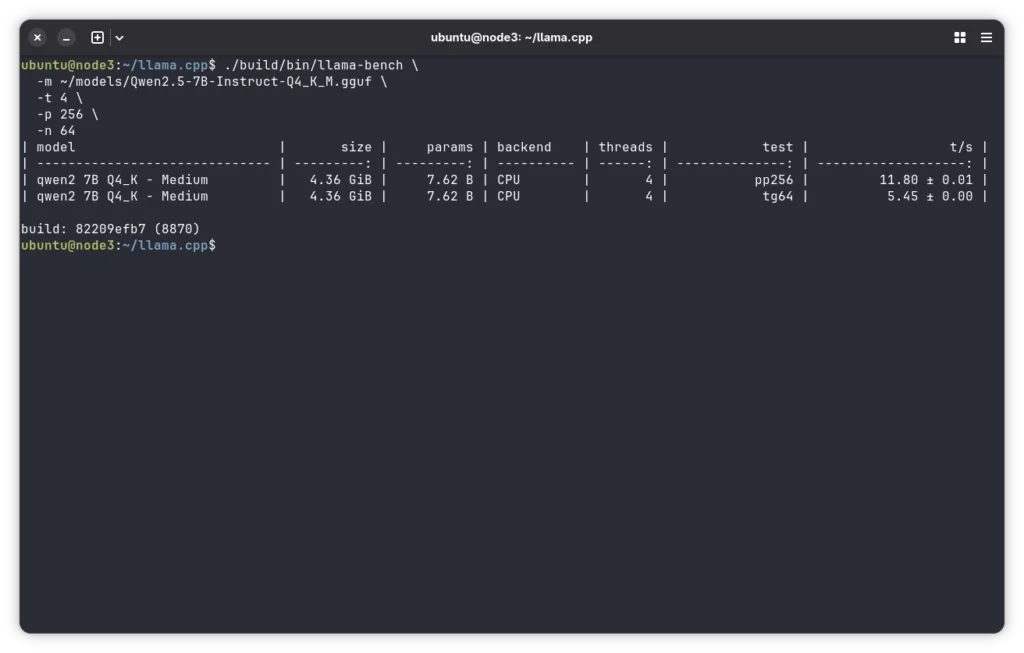
Step 5: Run the Built-in Benchmark
Before settling on thread count and context size, run the built-in benchmark to find your baseline:
./build/bin/llama-bench \
  -m ~/models/Qwen2.5-7B-Instruct-Q4_K_M.gguf \
  -t 4 \
  -p 256 \
  -n 64
This will report prompt processing speed (pp) and token generation speed (tg) in tokens per second. Run it with -t 4, -t 6, and -t 8 and compare results. On the RK3588, 4 threads often outperforms 8 threads for generation because the slower A55 cores can bottleneck the pipeline.
Part 4: Serving the Model as a Local API
Running a model interactively is useful for testing. For real integrations (Open WebUI, custom apps, Cursor-style tools), you want an API server.
Ollama API (Already Included)
If you installed Ollama, the API is already running on port 11434. It provides a simple REST API that is compatible with many OpenAI-style clients.
To test it from another machine on your network:
curl http://<node-ip>:11434/api/chat \
  -d '{"model":"qwen2.5:7b","messages":[{"role":"user","content":"<your-prompt>"}],"stream":false}'
llama.cpp Server
The llama.cpp server binary provides a lightweight API server with more control over inference.
./build/bin/llama-server \
  -m ~/models/Qwen2.5-7B-Instruct-Q4_K_M.gguf \
  --host 0.0.0.0 \
  --port 8080 \
  -t 4 \
  -c 4096 \
  -np 1
np 1sets the number of parallel inference slots. For a single-user setup, this is ideal. Increasing it allows concurrent requests, but divides available context and compute across those requests.
Once running:
- Base URL:
http://<node-ip>:8080/v1/ - Example endpoints:
/v1/chat/completions/v1/completions
These endpoints are OpenAI-style and require POST requests with a JSON body.
Accessing them directly in a browser will return a 404 error, which is expected.
Part 5: Setting Up Open WebUI for a Chat Interface
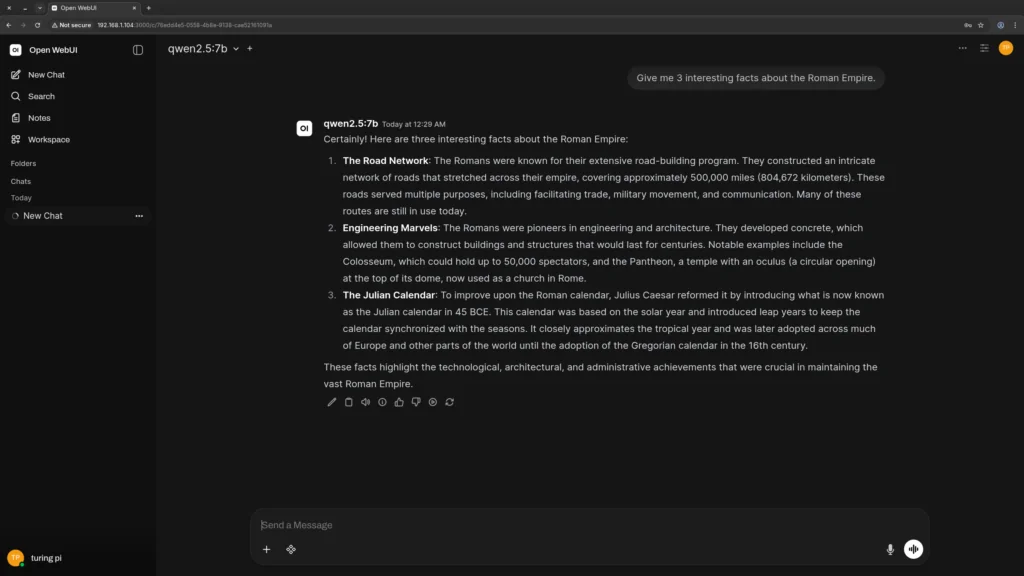
The terminal works for testing, but you probably want a proper chat interface for daily use. Open WebUI is a polished, self-hosted frontend that connects directly to either Ollama or a llama.cpp server endpoint.
Install Open WebUI via Docker
On the node running your inference server (or any other node on the cluster):
docker run -d \
  --name open-webui \
  --restart always \
  -p 3000:8080 \
  -e OLLAMA_BASE_URL=http://<ollama-node-ip>:11434 \
  -v open-webui:/app/backend/data \
  ghcr.io/open-webui/open-webui:main
Replace <ollama-node-ip> with the IP of your Node 2 or Node 3 running Ollama.
Open http://<node-ip>:3000 in your browser. On first load, create an admin account and you’ll see the Ollama models pulled to that node available in the model selector.
Tip: If you do not have Docker installed on your RK1, install it with:
curl -fsSL https://get.docker.com | sh && sudo usermod -aG docker $USER. Then log out and back in for the group change to take effect.
Part 6: Model Selection Guide by Node
Here is a practical reference for which models to run on each of your three nodes, based on what actually fits and performs well on current open model families.
Node 1 (8 GB RK1) – Best Models
| Model | RAM Used | Use Case |
| Gemma 3 4B Instruct | ~3.3 GB | Fast responses, punches above weight for its size |
| Qwen2.5 7B Instruct | ~4.7 GB | Better reasoning, general chat, coding help |
| Qwen2.5-Coder 7B | ~4.7 GB | Code-focused tasks, completions, review |
Avoid Q8 models on Node 1. The 8 GB node with OS overhead leaves roughly 5.5-6 GB free for model weights. Q8 of any 7B model pushes right to or past that limit. Stick to Q4_K_M on this node.
Node 2 (16 GB RK1) – Best Models
| Model | RAM Used | Use Case |
| Qwen2.5 14B Instruct | ~9.0 GB | Best general-purpose model for this node |
| DeepSeek-R1 7B (distill) | ~4.7 GB | Visible reasoning traces, great for demonstrating edge AI |
| Qwen2.5-Coder 14B | ~9.0 GB | Code generation and review at strong quality |
| Whisper Medium (via whisper.cpp) | ~3 GB | Transcription workloads alongside a small LLM |
Node 2 is the best general-purpose inference node. Qwen2.5 14B at Q4 is a comfortable fit with room left for context. The DeepSeek-R1 7B distill is worth pulling specifically to show the reasoning trace behavior.
Node 3 (32 GB RK1) – Best Models
| Model | RAM Used | Use Case |
| Qwen2.5 32B Instruct | ~20 GB | Flagship quality, coding, analysis, long context |
| Gemma 3 27B Instruct | ~17 GB | Strong instruction following, more headroom than 32B |
| Qwen2.5-Coder 32B | ~20 GB | Best code generation available on this hardware |
Node 3 is where the setup gets genuinely interesting. Qwen2.5 32B at Q4 is a flagship-class open model. At 32 GB you have options most homelab setups simply cannot touch.
Part 7: Keeping the Inference Server Running After Reboots
Ollama
If you installed Ollama, it runs as a systemd service by default and starts automatically on boot.
Verify:
systemctl is-enabled ollamaIf it returns enabled, no further setup is required. Ollama automatically manages model loading and keeps models in memory for a short period between requests (configurable via keep-alive settings).
llama.cpp Server
To keep the llama.cpp server running after reboots, create a systemd service.
sudo nano /etc/systemd/system/llamacpp.servicePaste the following (adjust paths as needed):
[Unit]
Description=llama.cpp Inference Server
After=network.target

[Service]
User=ubuntu
WorkingDirectory=/home/ubuntu/llama.cpp
ExecStart=/home/ubuntu/llama.cpp/build/bin/llama-server -m /home/ubuntu/models/Qwen2.5-7B-Instruct-Q4_K_M.gguf --host 0.0.0.0 --port 8080 -t 4 -c 4096 -np 1
Restart=on-failure
RestartSec=5

[Install]
WantedBy=multi-user.target
Enable and Start
sudo systemctl daemon-reload
sudo systemctl enable llamacpp
sudo systemctl start llamacpp
Debugging
If something goes wrong, check logs:
journalctl -u llamacpp -fPart 8: Thermal Behavior and Power Draw Under Inference Load
The RK3588 runs warm under sustained CPU inference. Here is what to expect:
| Load State | CPU Temp (approx) | Power Draw (node only) |
| Idle | 40-50°C | 5-7W |
| Single-user inference | 60-75°C | 9-13W |
| Sustained multi-turn inference | 70-85°C | 11-14W |
If you are running the 32 GB node hard with a 32B model and see temps consistently above 80-85°C, thermal throttling will kick in and reduce clock speeds, which directly impacts tokens per second.
Mitigation options:
- Ensure your case has adequate airflow past the heatsink fins.
- Avoid fully enclosing the cluster without ventilation.
- Add a low-speed 80mm fan if running sustained inference workloads.
- Monitor temps with:
cat /sys/class/thermal/thermal_zone0/temp(divide by 1000 for Celsius).
Troubleshooting Common Issues
Ollama Pulls Fine But the Model Runs Out of Memory
This usually means the system is already using more RAM than expected before the model loads.
Check available memory:
free -hFocus on the available column, not free.
If available memory is lower than expected, identify what is consuming RAM:
ps aux --sort=-%mem | head -20If k3s is running on the node, system pods can consume a significant portion of memory. For inference-heavy nodes, consider running without k3s to reduce overhead.
llama.cpp Build Fails with CMake Errors
Ensure all dependencies are installed:
sudo apt install -y cmake build-essential git libopenblas-devThen clean and rebuild:
cd ~/llama.cpp
rm -rf build
cmake -B build -DGGML_NATIVE=ON -DGGML_BLAS=ON -DGGML_BLAS_VENDOR=OpenBLAS
cmake --build build --config Release -j$(nproc)
OpenBLAS can improve prompt processing performance on ARM, though gains may vary.
Tokens Per Second Is Much Lower Than the Table Above
Thread count is the most common cause. By default, llama.cpp may use all cores, including the slower A55 cores on RK3588. This can reduce performance.
Test different thread counts:
./build/bin/llama-bench -m ~/models/your-model.gguf -t 4 -n 128
./build/bin/llama-bench -m ~/models/your-model.gguf -t 6 -n 128
./build/bin/llama-bench -m ~/models/your-model.gguf -t 8 -n 128
Compare generation speed (tokens/sec) and use the configuration that performs best. On most RK1 setups, -t 4 gives the best results, as including the slower A55 cores can bottleneck generation speed.
Model Not Found (Ollama or llama.cpp)
Ensure the model name matches exactly.
- Ollama uses tags like:
qwen2.5:7b
- llama.cpp uses the full file name:
Qwen2.5-7B-Instruct-Q4_K_M.gguf
Linux file paths are case-sensitive.
API Not Working from Another Device
- Ensure both devices are on the same network
- Confirm the correct node IP
- Verify the service is running:
curl http://<node-ip>:11434or for llama.cpp:
curl http://<node-ip>:8080Open WebUI Cannot Connect to Ollama
Ensure Ollama is bound to all interfaces:
sudo systemctl cat ollama | grep OLLAMA_HOSTYou should see:
OLLAMA_HOST=0.0.0.0If not, repeat the binding step from earlier.
What You’ve Set Up
At this point, depending on which nodes and tools you configured, you have:
- A self-hosted LLM inference server running 24/7 on low-power ARM hardware
- A local AI endpoint accessible to any device on your network
- A chat interface via Open WebUI if you went that route
- Per-node model assignments that match RAM to model quality without overcommitting
This is the same fundamental capability that cloud AI providers sell per-token. You now have a complete setup for running AI locally on ARM hardware that costs under 15W per node to operate.
For more context on how AI inference fits into a broader self-hosted stack alongside Nextcloud, Gitea, and Prometheus, see Turing Pi 2.5 Use Cases: 13 Real Projects from Weekend Builds to Production Stacks
The next articles in this series build directly on what you have now. Upcoming topics include:
- Running distributed workloads across nodes using k3s
- RK1 performance benchmarks across models and quantization levels
These expand on the same foundation you have now, moving from a single-node inference setup to a more complete, multi-node system.
FAQ: Running AI Locally on ARM with Ollama and llama.cpp
What is the fastest model I can run on the 8 GB RK1 node for real-time chat?
The fastest practical model for real-time chat on an 8 GB RK1 node is Gemma 3 4B (Q4), which typically delivers around 5-8 tokens per second on the RK3588. At this speed, responses feel nearly instant for short prompts and interactive use.
If you need higher output quality and can accept lower speed (~3-7 tokens/sec), Qwen2.5 7B (Q4) is the best upgrade. It fits within the 8 GB memory limit with reasonable headroom and consistently outperforms older models like Llama 3.1 8B in both reasoning and instruction-following.
Can I run multiple models on the same node at the same time?
Running multiple models on the same RK1 node is generally not recommended, especially on 8 GB and 16 GB configurations. Each model loads its full weights into RAM. For example, two 7B models (Q4) on a 16 GB node will consume nearly all available memory, leading to out-of-memory errors or severe performance degradation due to swapping.
On a 32 GB node, it is technically possible to run multiple smaller models simultaneously. However, this introduces CPU and memory contention, reducing tokens per second for each model. A more effective approach is to run one model per node and route requests to the appropriate node based on the task. This avoids resource contention and provides more predictable performance.
Does the RK1 NPU accelerate llama.cpp or Ollama inference?
No, not in a stable or production-ready way. The RK3588 includes a 6 TOPS NPU that could theoretically accelerate LLM inference, but mainstream tools like llama.cpp and Ollama do not currently support it in a reliable way.
Why does Qwen2.5 outperform Llama 3.1 at the same parameter count?
Qwen2.5 generally outperforms Llama 3.1 because it was trained on more data and benefits from newer architecture and alignment improvements. It uses techniques like more efficient attention mechanisms and has undergone more recent post-training optimization. As a result, models like Qwen2.5 7B consistently outperform Llama 3.1 8B across tasks such as coding, math, and instruction following. For most homelab setups, Qwen2.5 is the better default choice at comparable model sizes.
Can I use the RK1 inference server as a drop-in replacement for the OpenAI API in my apps?
Yes. Both Ollama and llama.cpp expose OpenAI-compatible endpoints, so apps can point to your RK1 node.
Limitations:
- Speed: ~3-8 tokens/sec on CPU
- Capability: 7B-32B models are weaker than GPT-4 class models for complex tasks
It works well for coding assistants, document Q&A, summarization, and local automation.
Does running inference all day cause any problems with the RK1 hardware?
No, not under normal conditions. The RK1 is designed for 24/7 operation. Sustained CPU inference typically keeps temperatures in the 65–80°C range with proper airflow, which is within safe limits for the RK3588. The main long-term consideration is storage wear. Frequent writes can wear down eMMC over time, so using NVMe for models and data is recommended.
What is the difference between Ollama and Open WebUI? Do I need both?
Ollama is the inference backend. It loads models, runs inference, and exposes an API. Open WebUI is a frontend that connects to that API and provides a chat interface. You do not need both. You can use Ollama directly via the CLI or API, or connect it to a different frontend. The combination is popular because Open WebUI is easy to set up, polished, and works out of the box with Ollama.